You signed in with another tab or window. Reload to refresh your session.You signed out in another tab or window. Reload to refresh your session.You switched accounts on another tab or window. Reload to refresh your session.Dismiss alert
[Docs]: Cleanup, Push to site, and Spell check (exercism#2776)
* Entry for TOOLS.md
* Correct links
* Spell check and cleanup
* [TESTING Docs]: Added intro and a few suggestions. (exercism#2778)
* Add intro and a few suggestions.
* Update docs/TESTS.md
Co-authored-by: Job van der Wal <48634934+J08K@users.noreply.github.com>
Co-authored-by: Job van der Wal <48634934+J08K@users.noreply.github.com>
Co-authored-by: BethanyG <BethanyG@users.noreply.github.com>
The PyTest [Getting Started Guide](https://docs.pytest.org/en/latest/getting-started.html) has quick general instructions, although they do not cover installing the plugins.
12
+
Continue reading below for more detailed instructions.
13
+
14
+
We also recommend using [pylint](https://pylint.pycqa.org/en/latest/user_guide/), as it is part of our automated feedback on the website, and can be a very useful (but also noisy) code analysis tool.
15
+
16
+
Pylint can be a bit much, so this [tutorial from pycqa.orgl](https://pylint.pycqa.org/en/latest/tutorial.html) can be helpful for getting started, as can this overview of [Code Quality: Tools and Best Practices](https://realpython.com/python-code-quality/) from Real Python.
@@ -57,9 +62,9 @@ If you do not want to precede every command with `python3 -m` please refer to [a
57
62
58
63
#### Installing pytest within a virtual environment
59
64
60
-
*For more information about virtual environments please refer to the [TOOLS](./TOOLS.md) file.*
65
+
_For more information about virtual environments please refer to the [tools](./tools) file._
61
66
62
-
When installing pytest or any other module(s), make sure that you have [activated your environment](.\TOOLS.md#activating-your-virtual-environment). After which you can run:
67
+
When installing pytest or any other module(s), make sure that you have [activated your environment](./tools#activating-your-virtual-environment). After which you can run:
@@ -150,7 +155,7 @@ This will test your solution. When `pytest` encounters a failed test, the progra
150
155
151
156
#### Using PDB, the Python Debugger, with pytest
152
157
153
-
If you want to truly debug like a pro, use the `--pdb` argument after the `pytest` command.
158
+
If you want to truly debug like a pro, use the `--pdb` argument after the `pytest` command.
154
159
155
160
```bash
156
161
$ python3 -m pytest --pdb bob_test.py
@@ -161,13 +166,13 @@ When a test fails, `PDB` allows you to look at variables and how your code respo
161
166
162
167
## Extending your IDE
163
168
164
-
If you'd like to extend your IDE with some tools that will help you with testing and improving your code, check the [TOOLS](./TOOLS.md) page. We go into multiple IDEs, editors and some useful extensions.
169
+
If you'd like to extend your IDE with some tools that will help you with testing and improving your code, check the [tools](./tools) page. We go into multiple IDEs, editors and some useful extensions.
165
170
166
171
## Additional information
167
172
168
173
### Adding pytest to your PATH
169
174
170
-
**Note:** If you are running a [virtual environment](.\TOOLS.md) you do not need to *add to path* as it should work fine.
175
+
**Note:** If you are running a [virtual environment](./tools.md) you do not need to _add to path_ as it should work fine.
171
176
172
177
Typing `python3 -m` every time you want to run a module can get a little annoying. You can add the `Scripts` folder of your Python installation to your path. If you do not know where you have installed Python, run the following command in your terminal:
From there click on the `+` button to add a new interpreter. Select the type of interpreter on the left. We suggest you either run a [conda]() or [virtualenv]() environment, but running the *system interpreter* works fine, too. Once you selected your interpreter, press the `Okay` button.
132
+
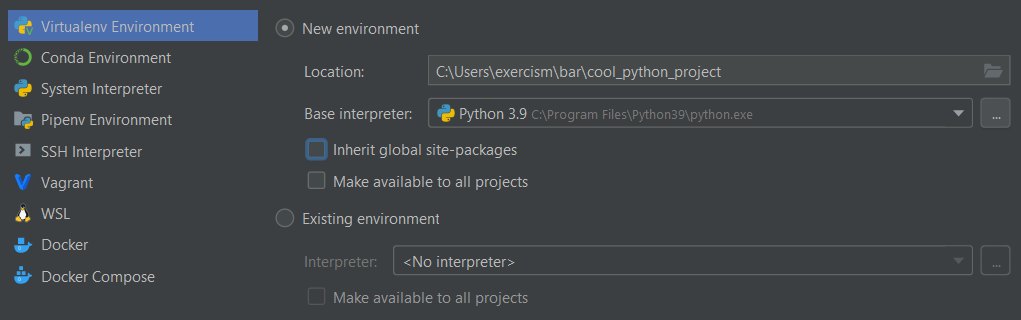
From there click on the `+` button to add a new interpreter. Select the type of interpreter on the left. We suggest you either run a [conda](#conda) or [virtualenv](#venv) environment, but running the *system interpreter* works fine, too. Once you selected your interpreter, press the `Okay` button.
150
133
151
134
0 commit comments