# Fine-tuning LLMs on AMD GPUs with Unsloth Guide
Fine-tune LLMs up to 2x faster with \~70% less memory on AMD hardware, no NVIDIA required. Unsloth supports AMD Radeon RDNA 2/3/3.5/4 (RX 6000–9000 series) and data center GPUs including the MI300X (192GB).
{% stepper %}
{% step %}
#### **One-line installer**
**Easiest install:** Skip all the steps below with the one-line installer, it auto-detects your AMD GPU, installs ROCm-optimized PyTorch, bitsandbytes, and launches Unsloth Studio:
```
curl -fsSL https://unsloth.ai/install.sh | sh
```
The manual steps below are for users who want a Python library-only install without Studio.
{% endstep %}
{% step %}
#### **Make a new isolated environment (Optional)**
To not break any system packages, you can make an isolated pip environment. Reminder to check what Python version you have! It might be `pip3`, `pip3.13`, `python3`, `python.3.13` etc.
{% code overflow="wrap" %}
```bash
apt update && apt install python3.10-venv python3.11-venv python3.12-venv python3.13-venv -y
python3 -m venv unsloth_env
source unsloth_env/bin/activate
pip install uv
```
{% endcode %}
{% endstep %}
{% step %}
#### **Install PyTorch**
*Install PyTorch with ROCm support from* Check your ROCm version via [amd-smi version](https://vscode-file/vscode-app/c:/Users/BlueberryDev/AppData/Local/Programs/Microsoft%20VS%20Code/41dd792b5e/resources/app/out/vs/code/electron-browser/workbench/workbench.html) then change `https://download.pytorch.org/whl/rocm7.1` to match it. **ROCm 6.0 or newer is required.** ROCm 5.x and below have no PyTorch wheels.
{% code overflow="wrap" %}
```bash
uv pip install "torch>=2.4,<2.11.0" "torchvision<0.26.0" "torchaudio<2.11.0" \
--index-url https://download.pytorch.org/whl/rocm7.1 --upgrade --force-reinstall
```
{% endcode %}
*The version caps prevent accidentally pulling torch 2.11+ which only has ROCm 7.2 wheels and will break things. Update `rocm7.1` to match your detected version as before.*
We also wrote a single terminal command to extract the correct ROCM version if it helps.
```bash
ROCM_TAG="$({ command -v amd-smi >/dev/null 2>&1 && amd-smi version 2>/dev/null | awk -F'ROCm version: ' 'NF>1{split($2,a,"."); print "rocm"a[1]"."a[2]; ok=1; exit} END{exit !ok}'; } || { [ -r /opt/rocm/.info/version ] && awk -F. '{print "rocm"$1"."$2; exit}' /opt/rocm/.info/version; } || { command -v hipconfig >/dev/null 2>&1 && hipconfig --version 2>/dev/null | awk -F': *' '/HIP version/{split($2,a,"."); print "rocm"a[1]"."a[2]; ok=1; exit} END{exit !ok}'; } || { command -v dpkg-query >/dev/null 2>&1 && ver="$(dpkg-query -W -f="${Version}\n" rocm-core 2>/dev/null)" && [ -n "$ver" ] && awk -F'[.-]' '{print "rocm"$1"."$2; exit}' <<<"$ver"; } || { command -v rpm >/dev/null 2>&1 && ver="$(rpm -q --qf '%{VERSION}\n' rocm-core 2>/dev/null)" && [ -n "$ver" ] && awk -F'[.-]' '{print "rocm"$1"."$2; exit}' <<<"$ver"; })"; [ -n "$ROCM_TAG" ] && uv pip install "torch>=2.4,<2.11.0" "torchvision<0.26.0" "torchaudio<2.11.0" --index-url "https://download.pytorch.org/whl/$ROCM_TAG" --upgrade --force-reinstall
```
*Note: If your ROCm version is 7.2 or higher, replace `$ROCM_TAG` in the command above with `rocm7.1,` no PyTorch wheels exist yet for 7.2+.*
⚠️ Required for AMD: install ROCm-compatible bitsandbytes\
All ROCm systems need a pre-release bitsandbytes build, versions ≤ 0.49.2 have a 4-bit decode NaN bug on every AMD GPU. Note: use `pip` not `uv` for this step, `uv` rejects the pre-release wheel due to a version mismatch in the filename.
{% code overflow="wrap" %}
```bash
# x86_64 systems:
pip install --force-reinstall --no-cache-dir --no-deps \
"https://github.com/bitsandbytes-foundation/bitsandbytes/releases/download/continuous-release_main/bitsandbytes-1.33.7.preview-py3-none-manylinux_2_24_x86_64.whl"
# aarch64 systems: replace x86_64 with aarch64 in the URL above
# Fallback if the URL is unreachable:
# pip install --force-reinstall --no-cache-dir --no-deps "bitsandbytes>=0.49.1"
```
{% endcode %}
{% endstep %}
{% step %}
#### **Start fine-tuning with Unsloth!**
And that's it. Try some examples in our [**Unsloth Notebooks**](https://unsloth.ai/docs/get-started/unsloth-notebooks) page!
You can view our dedicated [fine-tuning](https://unsloth.ai/docs/get-started/fine-tuning-llms-guide) or [reinforcement learning](https://unsloth.ai/docs/get-started/reinforcement-learning-rl-guide) guides. Heres a brief example as well:
**1. Set environment variables**
{% code overflow="wrap" %}
```bash
export HSA_OVERRIDE_GFX_VERSION=9.4.2 # Required for AMD MI300X
export HF_HUB_DISABLE_XET=1 # Fixes HuggingFace download issues on AMD
```
{% endcode %}
***Note:*** *`HSA_OVERRIDE_GFX_VERSION=9.4.2` tells ROCm to treat your GPU as gfx942 (MI300X). Without this, some kernels may fail to compile or run.*
**2. Load and configure model**
{% code overflow="wrap" %}
```python
from unsloth import FastModel
model, tokenizer = FastModel.from_pretrained(
model_name = "unsloth/gemma-4-26b-a4b-it",
max_seq_length = 2048,
load_in_4bit = True,
)
model = FastModel.get_peft_model(
model,
r = 16,
lora_alpha = 16,
target_modules = ["q_proj", "k_proj", "v_proj", "o_proj"],
)
```
{% endcode %}
**3. Train**
{% code overflow="wrap" %}
```python
from trl import SFTTrainer, SFTConfig
trainer = SFTTrainer(
model = model,
tokenizer = tokenizer,
train_dataset = dataset,
formatting_func = formatting_func,
args = SFTConfig(
per_device_train_batch_size = 1,
gradient_accumulation_steps = 4,
max_steps = 60,
output_dir = "outputs",
report_to = "none",
),
)
trainer_stats = trainer.train()
```
{% endcode %}
***Note:** On AMD GPUs, Flash Attention 2 is not available. Unsloth automatically falls back to Xformers, which provides equivalent performance on ROCm. The warning can be safely ignored.*
{% endstep %}
{% endstepper %}
### :1234: Reinforcement Learning on AMD GPUs
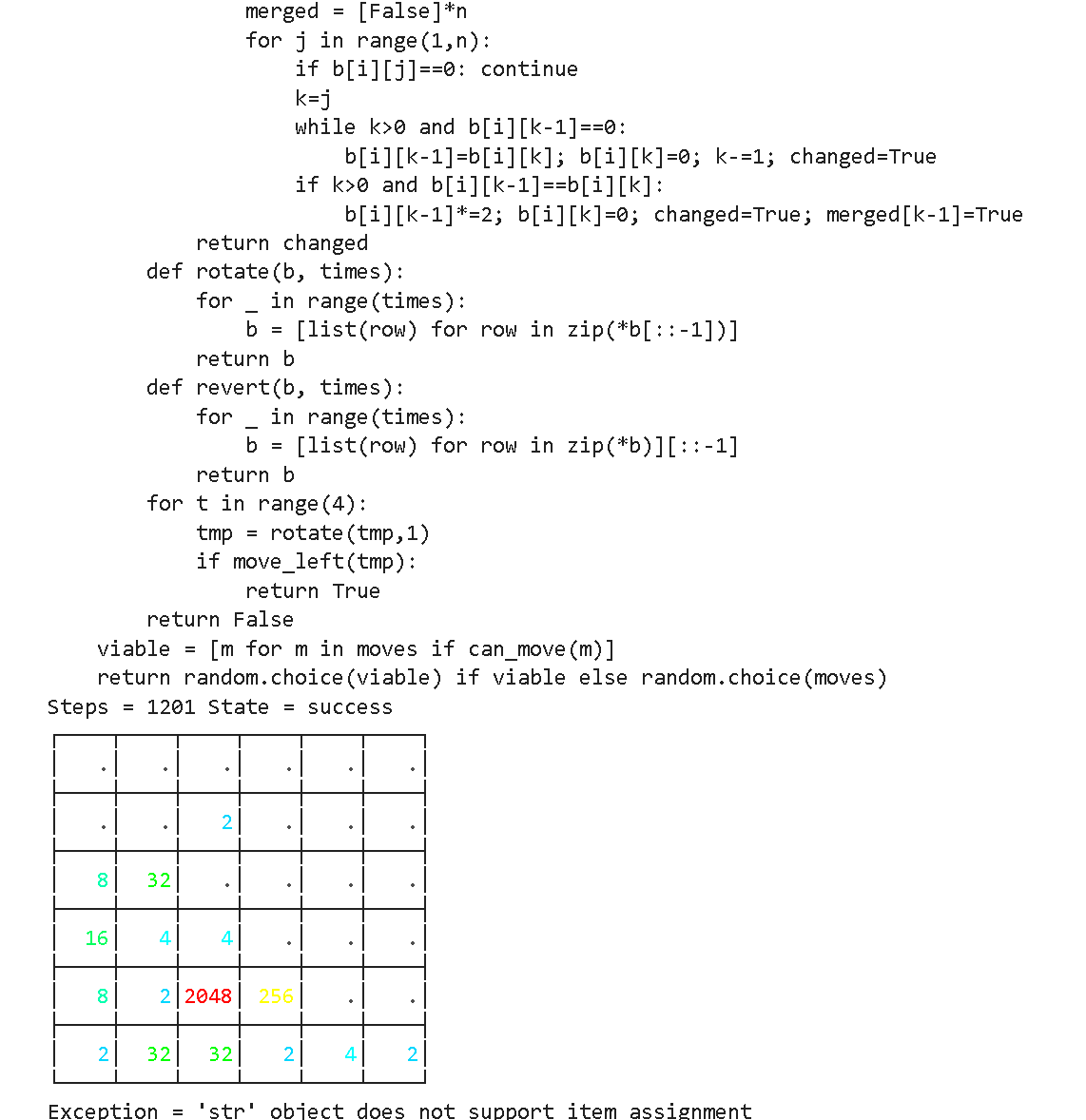
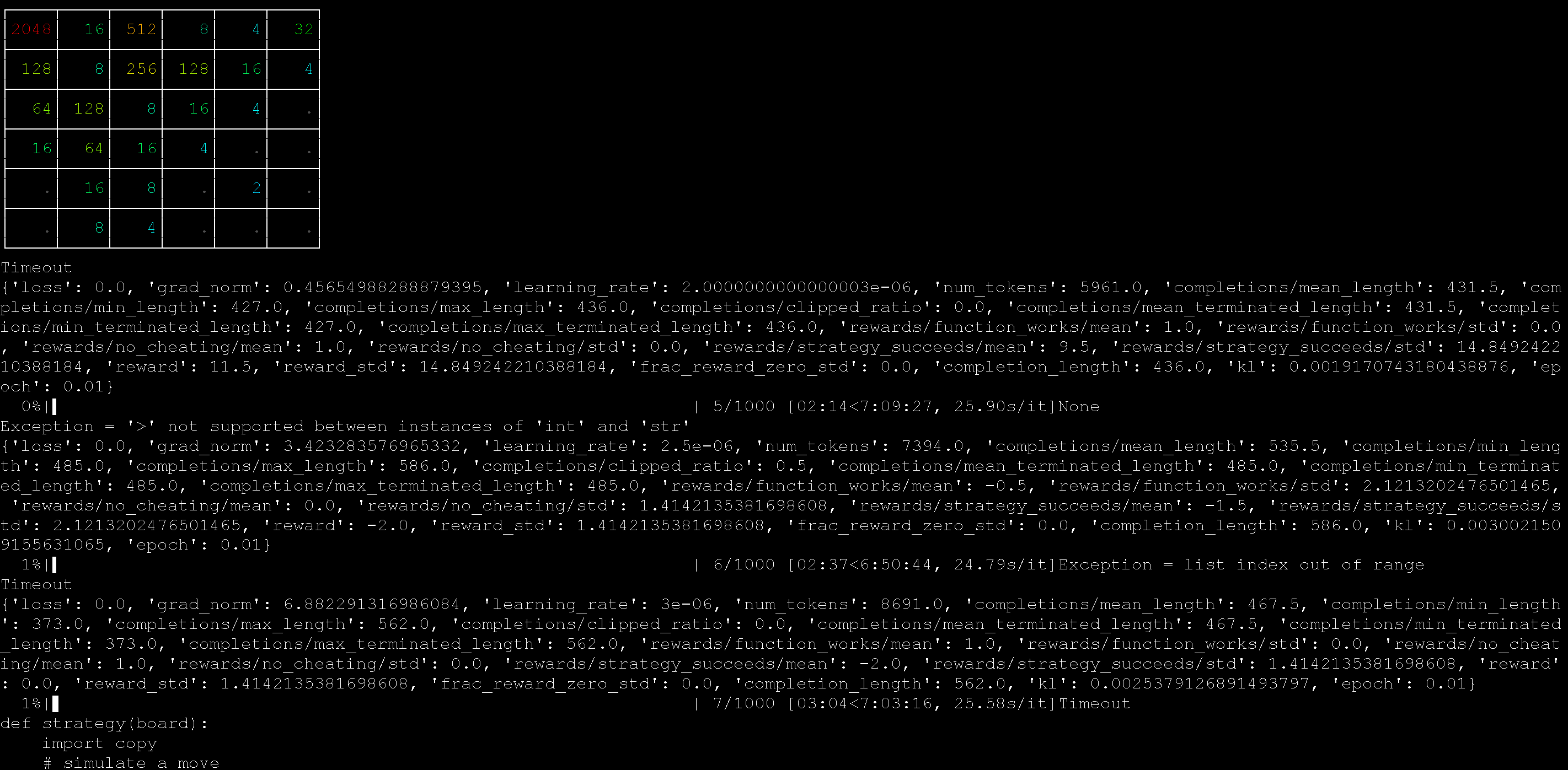
You can use our :ledger:[gpt-oss RL auto win 2048](https://github.com/unslothai/notebooks/blob/main/nb/gpt_oss_\(20B\)_Reinforcement_Learning_2048_Game_BF16.ipynb) example on a MI300X (192GB) GPU. The goal is to play the 2048 game automatically and win it with RL. The LLM (gpt-oss 20b) auto devises a strategy to win the 2048 game, and we calculate a high reward for winning strategies, and low rewards for failing strategies.
{% columns %}
{% column %}
{% endcolumn %}
{% column %}
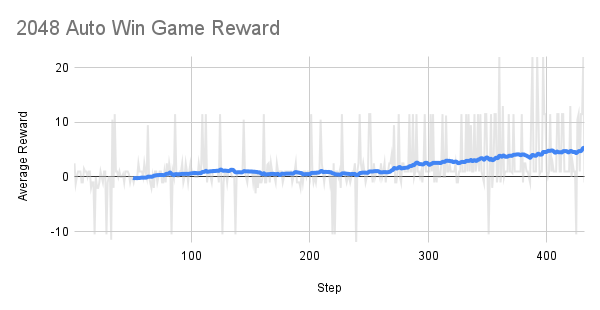
The reward over time is increasing after around 300 steps or so!
The goal for RL is to maximize the average reward to win the 2048 game.
{% endcolumn %}
{% endcolumns %}
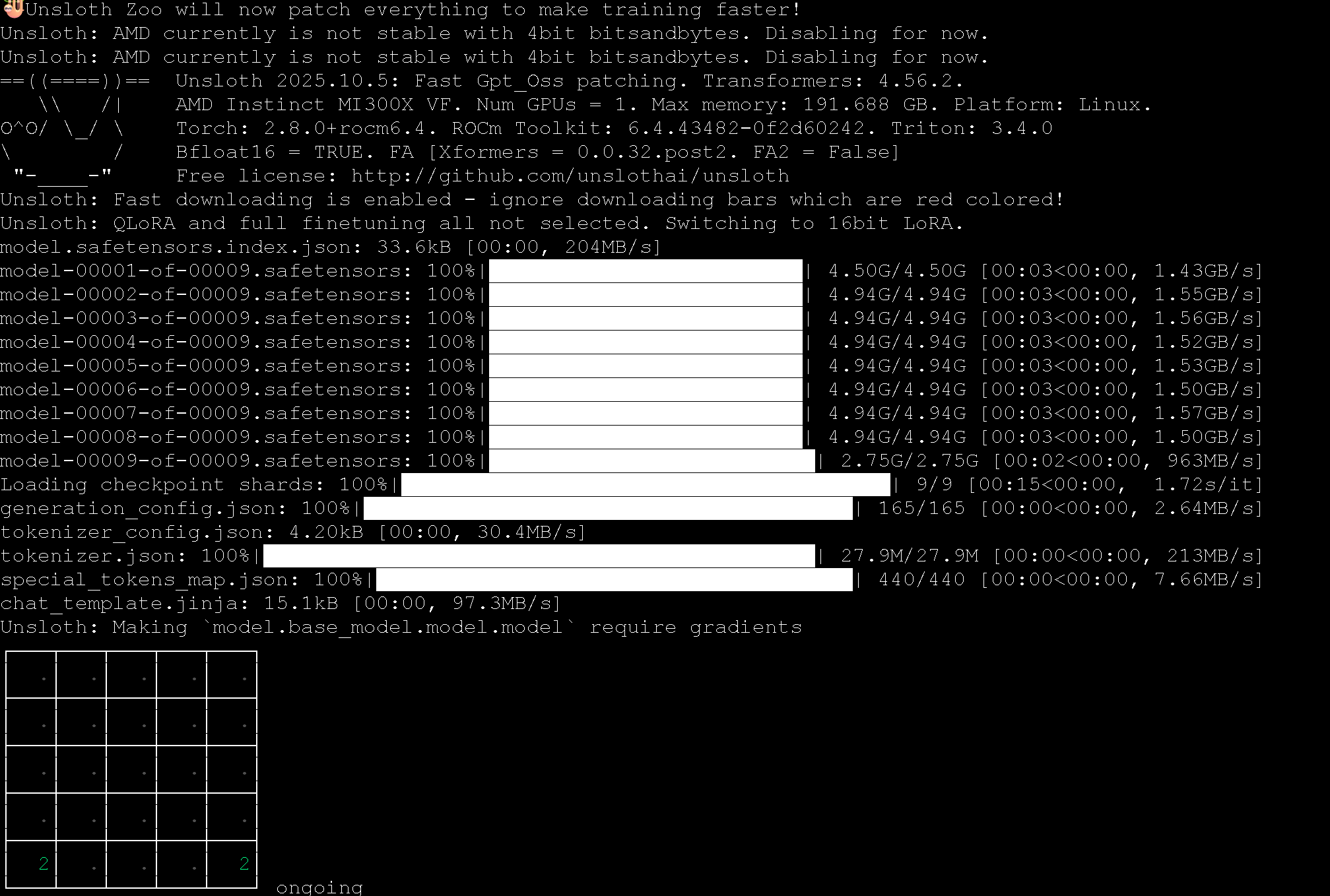
We used an AMD MI300X machine (192GB) to run the 2048 RL example with Unsloth, and it worked well!
You can also use our :ledger:[automatic kernel gen RL notebook](https://github.com/unslothai/notebooks/blob/main/nb/gpt_oss_\(20B\)_GRPO_BF16.ipynb) also with gpt-oss to auto create matrix multiplication kernels in Python. The notebook also devices multiple methods to counteract reward hacking.
{% columns %}
{% column width="50%" %}
The prompt we used to auto create these kernels was:
{% code overflow="wrap" %}
````
Create a new fast matrix multiplication function using only native Python code.
You are given a list of list of numbers.
Output your new function in backticks using the format below:
```
python
def matmul(A, B):
return ...
```
````
{% endcode %}
{% endcolumn %}
{% column width="50%" %}
The RL process learns for example how to apply the Strassen algorithm for faster matrix multiplication inside of Python.
{% endcolumn %}
{% endcolumns %}
### :books:AMD Free One-click notebooks
AMD provides one-click notebooks equipped with **free 192GB VRAM MI300X GPUs** through their Dev Cloud. Train large models completely for free (no signup or credit card required):
* [Qwen3 (32B)](https://oneclickamd.ai/github/unslothai/notebooks/blob/main/nb/Qwen3_\(32B\)_A100-Reasoning-Conversational.ipynb)
* [Llama 3.3 (70B)](https://oneclickamd.ai/github/unslothai/notebooks/blob/main/nb/Llama3.3_\(70B\)_A100-Conversational.ipynb)
* [Qwen3 (14B)](http://oneclickamd.ai/github/unslothai/notebooks/blob/main/nb/Qwen3_\(14B\)-Reasoning-Conversational.ipynb)
* [Mistral v0.3 (7B)](http://oneclickamd.ai/github/unslothai/notebooks/blob/main/nb/Mistral_v0.3_\(7B\)-Alpaca.ipynb)
* [GPT OSS MXFP4 (20B)](http://oneclickamd.ai/github/unslothai/notebooks/blob/main/nb/Kaggle-GPT_OSS_MXFP4_\(20B\)-Inference.ipynb) - Inference
* Reinforcement Learning notebook:
{% embed url="" %}
You can use any Unsloth notebook by prepending ****** in [unsloth-notebooks](https://unsloth.ai/docs/get-started/unsloth-notebooks "mention") by changing the link from to
{% columns %}
{% column width="33.33333333333333%" %}
{% endcolumn %}
{% column width="66.66666666666667%" %}
{% endcolumn %}
{% endcolumns %}
---
# Agent Instructions: Querying This Documentation
If you need additional information that is not directly available in this page, you can query the documentation dynamically by asking a question.
Perform an HTTP GET request on the current page URL with the `ask` query parameter:
```
GET https://unsloth.ai/docs/get-started/install/amd.md?ask=
```
The question should be specific, self-contained, and written in natural language.
The response will contain a direct answer to the question and relevant excerpts and sources from the documentation.
Use this mechanism when the answer is not explicitly present in the current page, you need clarification or additional context, or you want to retrieve related documentation sections.


%20(1)%20(1)%20(1)%20(1)%20(1).png?alt=media)

