You signed in with another tab or window. Reload to refresh your session.You signed out in another tab or window. Reload to refresh your session.You switched accounts on another tab or window. Reload to refresh your session.Dismiss alert
Instead of hard-coding different values to test the same scenario with different test data, you can use Data Driven testing. In Testsigma, you can
25
+
This tutorial walks you through data-driven testing and how to enable it in the test case. This can involve using external test data profiles as a source within the project to drive its behaviour. The goal is to increase the effectiveness and efficiency of testing by automating repetitive tasks and ensuring comprehensive test coverage. In Testsigma, you can
26
+
29
27
30
-
1.Import or read the test data and/or expected output data from external files or data sources, then
28
+
1.The test data and expected output data can be imported or read from external sources.
31
29
32
-
2.Feed this data into your automated test cases so that you don't need to hard-code the test data into the Test Steps definition.
30
+
2.Using this data, you can avoid hardcoding the test data into the Test Steps definition in your automated test cases.
33
31
34
-
The test steps iterates itself and subsequent rows of data are fed to the test steps as input.
32
+
Test steps iterate and feed subsequent rows of data into them as input.
35
33
36
34
---
37
35
38
-
> ## [Prerequisites:](#prerequisites)
36
+
### **Prerequisites**
39
37
40
-
> 1. You should know [how to create a test data profile](https://testsigma.com/docs/test-data/create-data-profiles/).
41
-
> 2. You should know [how to create a test case](https://testsigma.com/docs/test-cases/manage/add-edit-delete/).
38
+
You'll need to know how to create a [test cases](https://testsigma.com/docs/test-cases/manage/add-edit-delete/#creating-a-test-case), [test data profile](https://testsigma.com/docs/test-data/create-data-profiles/#create-a-test-data-profile), and [runtime variable](https://testsigma.com/docs/test-data/types/runtime/#how-to-use-runtime-test-data-in-test-steps).
42
39
43
40
---
44
41
45
-
## [Step 1: Associate data profile with your test case](#step-1-associate-data-profile-with-you-test-case)
42
+
## **Enable Data-Driven in test case**
46
43
47
-
1. In **Create** or **Edit** test case form and click on **Show additional options**.
44
+
1. On the **Create** or **Edit** test case page, click on **Show additional options** to unhide the features.
45
+

48
46
49
-
2. Select the **Test data profile** you want to add to your test cases and enable the toggle **Data Driven** as shown below:
47
+
2. Select the **Test data profile** from the drop-down menu and turn on the **Data driven** toggle.
48
+

50
49
51
-

52
-
53
-
Enabling the data-driven toggle will enable the test to run multiple times based on the number of rows available in Test Data Profile. For. If the data profile has 5 rows(sets) the test will run 5 times automatically using each data set(row) everytime.
50
+
Enabling the data-driven toggle will allow the test to run multiple times based on the number of rows in the Test Data Profile. If the data profile has five rows (sets), the test will run five times automatically, using each data set (row) every time.
54
51
55
52
[[info | Note:]]
56
-
| You can also select a specific data set if you want to run only once using data from a specific data set in the profile.
57
-
58
-
If you enable the data driven testing in your test case you can narrow and customize the various data sets from your test data profile that are being used in your test case using the filters *iteration*, *parameter*, *set name*.
53
+
| You can also select a specific dataset if you want to run the profile only once, using data from that dataset.
59
54
60
-
* Iteration: This type of filtering is applicable only to sequential data sets. The data sets can be filtered using the filter operations greater than,less than, or between.
55
+
Data-driven testing allows you to narrow and customize your test case using filters like *iteration*, *set name*, and *parameter*.
61
56
62
-
* Set name: This type of filtering is applicable for non sequential data sets. Here the data sets are filtered by data set names using the operations between, equals, contains, starts with, ends with. Any data set names containing the set name or part of it are used in the test case.
57
+
***Iteration:** This type of filtering applies only to sequential data sets. The data sets can be filtered using the filter operations *greater than*, *less than*, and *between*.
63
58
64
-
* Parameter:This type of filtering is applicable for nonsequential data sets. Here the data sets are filtered using parameters used in data sets.
59
+
***Set name:**This type of filtering applies to non-sequential data sets. Here, the data sets are filtered by their names using the operations *between*, *equals*, *contains*, *starts with*, and *ends with*. Any data set names containing the set name, or part of it are used in the test case.
***Parameter:** This type of filtering applies to non-sequential data sets. Here, the data sets are filtered using parameters used in the data sets. Here, filter operations are using *Equals*, *Contains*, *Start With*, *Ends With*, *Is Empty*, and *Is Not Empty*.
67
62
68
-
Refer to the below GIF on how to associate a test data profile to a test case
69
63
70
-

64
+
###
71
65
66
+
3. Click **Create** or **Update** once the data driven is enabled.
67
+

72
68
73
-
---
69
+
[[info | NOTE:]]
70
+
| You can use **runtime variables** in **filter values** by entering **$|Maharashtra|**, where *Maharashtra* is a stored variable, as shown in the example above.
74
71
75
-
## [Step 2: Use parameter names in test case](#step-2-use-parameter-names-in-test-case)
76
72
77
-
1. Back in your test cases, while creating test steps, click on *test data* and select *@|Parameter|* from the drop down as shown below:
73
+
---
78
74
79
-

75
+
## **Use parameter names in test case**
80
76
81
-
2. Now an overlay will open with all available parameters in the data profile.
77
+
1. Click on **test data** and select **@|Parameter|** from the drop-down list when creating test steps in the test case.
78
+

82
79
83
-

80
+
2. An overlay screen will open, displaying all available parameters in the test data profile.
81
+

84
82
85
83
Now, your test case will use the parameter value from your test data profile.
86
84
87
-
Refer to the below GIF on how to use parameter names in test cases
88
-

85
+

89
86
90
87
---
91
88
92
-
## [Step 3: Run Data Driven Test Case](#step-3-run-data-driven-test-case)
89
+
## **Run Data Driven Test Case**
93
90
94
-
1. Click on Run Now on the top right corner and select the test machine/device details
95
-
96
-
2. Once the test run is complete you will get results for each of the data sets. Like in the screenshot below:
91
+
1. Click on **Run Now** in the top right corner, and the **Ad-hoc Run** screen will appear. Select the **test machine/device** and click **Run Now**.
97
92
93
+
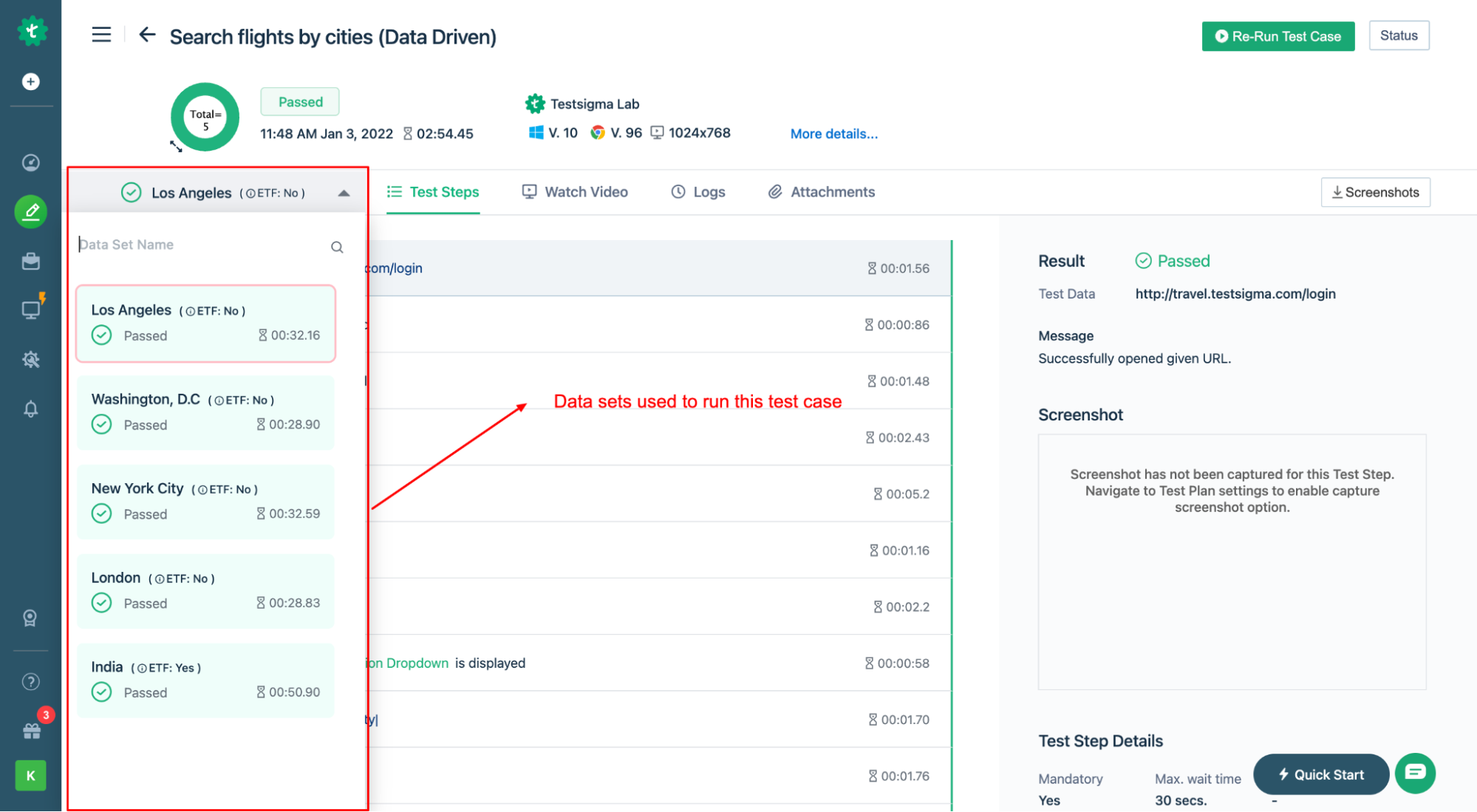
2. Once the test run is complete you will get results for each of the data sets.
98
94
0 commit comments