Skip to content

Commit 1fc55f1

Browse files
committed
- Fav Icon
- Image & Other styling fixes - image URLs - Video URLs
1 parent 32e4f7e commit 1fc55f1

16 files changed

Lines changed: 168 additions & 133 deletions

src/components/seo.jsx

Lines changed: 3 additions & 0 deletions
Original file line numberDiff line numberDiff line change
@@ -9,6 +9,7 @@ import React from 'react';
99
import PropTypes from 'prop-types';
1010
import Helmet from 'react-helmet';
1111
import { useStaticQuery, graphql } from 'gatsby';
12+
import favicon from './../images/favicon-new.ico';
1213

1314
function SEO({
1415
lang, meta, title, slug,
@@ -85,6 +86,8 @@ function SEO({
8586
},
8687
].concat(meta)}
8788
>
89+
{/* fav icon */}
90+
<link rel="icon" href={favicon} />
8891
{/* fonts */}
8992
<link rel="dns-prefetch" href="https://fonts.gstatic.com" />
9093
<link rel="dns-prefetch" href="https://fonts.googleapis.com" />

src/images/favicon-new.ico

15 KB
Binary file not shown.

src/pages/tutorials/agent/how-to-setup-agents-to-run-tests-on-local-mobile-devices.md

Lines changed: 2 additions & 2 deletions
Original file line numberDiff line numberDiff line change
@@ -39,7 +39,7 @@ contextual_links:
3939

4040
In order to create an account, navigate to [https://testsigma.com/signup](https://testsigma.com/signup)
4141

42-
![Create your Testsigma account](https://s3.amazonaws.com/static-docs.testsigma.com/tutorials/videos/setup-agents-to-run-on-local-devices/testsigma-create-account.png)
42+
![Create your Testsigma account](https://docs.testsigma.com/tutorials/videos/setup-agents-to-run-on-local-devices/testsigma-create-account.png)
4343

4444
After successful sign up, you will receive a confirmation email. Make sure to confirm so your account will be activated before you begin.
4545

@@ -83,7 +83,7 @@ Once your Testsigma agent is up and running and shows the STARTED status, click
8383

8484
**Agents > Add a new Agent**
8585

86-
![Add a new Testsigma Agent](https://s3.amazonaws.com/static-docs.testsigma.com/tutorials/videos/setup-agents-to-run-on-local-devices/add-new-agent-testsigma.png)
86+
![Add a new Testsigma Agent](https://docs.testsigma.com/tutorials/videos/setup-agents-to-run-on-local-devices/add-new-agent-testsigma.png)
8787

8888
Enter a title/name for your machine and click on the Save button.
8989

src/pages/tutorials/getting-started/automate-android-applications.md

Lines changed: 16 additions & 16 deletions
Original file line numberDiff line numberDiff line change
@@ -94,7 +94,7 @@ These projects (here, Android application) will also have a few sample Test Case
9494

9595
Here’s a video that explains all the steps discussed so far.
9696

97-
[android recorder (video)](https://docs.testsigma.com/tutorials/videos/getting-started-android/android_recorder.mp4)
97+
<iframe src="https://docs.testsigma.com/videos/tutorials/getting-started-android/android_recorder.mp4" width="600" height="400"></iframe>
9898

9999
The next section explains how you can add steps to test a sample scenario.
100100
**Sample Test Scenario:** We will be using a sample login test scenario using the wordpress app where the user taps on login, enters an email ID and is sent a magic login link.
@@ -119,11 +119,11 @@ The Testsigma test recorder (web and mobile) is in-built and sits directly on yo
119119

120120
Step1: To do this, simply click the **Record** option at the top of the test case details page.
121121

122-
![record_button](https://docs.testsigma.com/tutorials/videos/getting-started-android/record_button.jpg)
122+
![record_button](https://docs.testsigma.com/images/tutorials/getting-started-android/record_button.jpg)
123123

124124
Step 2: A new window will appear that has a few options in rows.
125125

126-
![recorder_options](https://docs.testsigma.com/tutorials/videos/getting-started-android/recorder_options.png)
126+
![recorder_options](https://docs.testsigma.com/images/tutorials/getting-started-android/recorder_options.png)
127127

128128
Let’s break down each row.
129129

@@ -158,7 +158,7 @@ New to Testsigma Mobile Recorder? [Here](https://testsigma.com/tutorials/test-ca
158158

159159
By default, the recorder will be in inspection mode (highlighted in yellow when you hover over any element).
160160

161-
![inspector_mode](https://docs.testsigma.com/tutorials/videos/getting-started-android/inspector_mode.gif)
161+
![inspector_mode](https://docs.testsigma.com/images/tutorials/getting-started-android/inspector_mode.gif)
162162

163163
Let’s try interacting with the Wordpress app we just uploaded.
164164

@@ -168,7 +168,7 @@ To record the Tap action we have two options, clicking on the ‘Log in’ butto
168168

169169
You’d see a new pane appear in the centre.
170170

171-
![inspect_options](https://docs.testsigma.com/tutorials/videos/getting-started-android/inspect_options.png)
171+
![inspect_options](https://docs.testsigma.com/images/tutorials/getting-started-android/inspect_options.png)
172172

173173
You’ll notice 3 options appear on top in the same pane:
174174
- Tap
@@ -179,21 +179,21 @@ You’ll notice 3 options appear on top in the same pane:
179179
So in this case click on tap and the recorder will perform a tap action in the app. Simultaneously this will generate an NLP statement in your test steps on the left hand side.
180180

181181

182-
![tap_action](https://docs.testsigma.com/tutorials/videos/getting-started-android/tap_action.gif)
182+
![tap_action](https://docs.testsigma.com/images/tutorials/getting-started-android/tap_action.gif)
183183

184184
**Test step 2:** Enter data into a field
185185

186186
After the tap action you will be navigated into the next screen in the app where you have to enter the email ID in the field provided.
187187

188-
![enter_data](https://docs.testsigma.com/tutorials/videos/getting-started-android/enter_data.gif)
188+
![enter_data](https://docs.testsigma.com/images/tutorials/getting-started-android/enter_data.gif)
189189

190190
To do this in inspector mode, first click on the email field. Then from the actions choose the enter data option. A box will pop up where you’ll be able to enter the email you want to.
191191

192192
Like the previous step the same actions will be recorded as an NLP step.
193193

194194
If you want to **clear** the value entered, clicking on the clear option after selecting that element in inspector mode will do that for you. And once again since we’re recording the test it will be converted into a test step in NLP.
195195

196-
![clear_action](https://docs.testsigma.com/tutorials/videos/getting-started-android/clear_action.gif)
196+
![clear_action](https://docs.testsigma.com/images/tutorials/getting-started-android/clear_action.gif)
197197

198198
**Test step 3** Click on next
199199

@@ -209,11 +209,11 @@ After performing these basic actions we need to verify that they were successful
209209

210210
So first click on the empty test step below the most recently created one in the recorder. From the drop down list select **‘Verify that the current page displays OPEN MAIL’**
211211

212-
![verify_step_android](https://docs.testsigma.com/tutorials/videos/getting-started-android/verify_step_android.gif)
212+
![verify_step_android](https://docs.testsigma.com/images/tutorials/getting-started-android/verify_step_android.gif)
213213

214214
Here’s a summary of the steps we discussed so far.
215215

216-
[android_add_recorder (video)](https://docs.testsigma.com/tutorials/videos/getting-started-android/android_add_recorder.mp4)
216+
<iframe src="https://docs.testsigma.com/videos/tutorials/getting-started-android/android_add_recorder.mp4" width="600" height="400"></iframe>
217217

218218
---
219219

@@ -228,23 +228,23 @@ In this section you will learn:
228228
1. How to add steps and create a new element on the go
229229
Learn more about how to add steps manually from the test case details page [here](https://testsigma.com/docs/test-cases/create-steps-recorder/android-apps/add-steps-manually/).
230230

231-
![edit_elements_recorder](https://docs.testsigma.com/tutorials/videos/getting-started-android/edit_elements_recorder.gif)
231+
![edit_elements_recorder](https://docs.testsigma.com/images/tutorials/getting-started-android/edit_elements_recorder.gif)
232232

233233
2. How to add steps using existing elements
234234
You can reuse them at any time by choosing the element you want to use/reuse in the Test Case. Simply pick the name of the Element.
235235

236236
3. How to add a simple verification steps
237237
Use the Verify action as used in Test Step 5 in the previous section.
238238

239-
![verify_edit_in_test](https://docs.testsigma.com/tutorials/videos/getting-started-android/verify_edit_in_test.gif)
239+
![verify_edit_in_test](https://docs.testsigma.com/images/tutorials/getting-started-android/verify_edit_in_test.gif)
240240

241241
4. How to create multiple elements at once,
242242
Read [this](https://testsigma.com/docs/elements/android-apps/record-multiple-elements/) to learn more.
243243
You can use any of these elements by picking the name and reuse them anywhere in your Test Steps.
244244

245245
Here’s an end-to-end video on how to create elements and add NLP steps manually for android apps
246246

247-
[android_nl_steps (video)](https://docs.testsigma.com/tutorials/videos/getting-started-android/android_nl_steps.mp4)
247+
<iframe src="https://docs.testsigma.com/videos/tutorials/getting-started-android/android_nl_steps.mp4" width="600" height="400"></iframe>
248248

249249
---
250250
## [Run your test case](#run-your-test-case)
@@ -253,7 +253,7 @@ You can run your tests locally on your own machine or on the devices on the clou
253253

254254
At the top right of your Test Steps page, click on **Run**.
255255

256-
![run_android_app](https://docs.testsigma.com/tutorials/videos/getting-started-android/run_android_app.png)
256+
![run_android_app](https://docs.testsigma.com/images/tutorials/getting-started-android/run_android_app.png)
257257

258258
Choose the device you wish to run your tests on, the device configurations, or how you’d like the screenshots captured, etc. You can choose these options based on your preference.
259259

@@ -267,13 +267,13 @@ After running the test case you’ll be able to view the results of your test ru
267267

268268
You can also view screenshots of each test step execution as well as watch a video of the entire test run.
269269

270-
![analyze_results_android](https://docs.testsigma.com/tutorials/videos/getting-started-android/analyze_results_android.png)
270+
![analyze_results_android](https://docs.testsigma.com/images/tutorials/getting-started-android/analyze_results_android.png)
271271

272272
Here all the test steps have passed successfully. In case if a test step fails you’ll be able to see the error message provided by clicking on the test step along with the screenshot. You can also check the video recording to see what went wrong in detail.
273273

274274
Here’s an example of a failed test step:
275275

276-
![Error_android_failed_step](https://docs.testsigma.com/tutorials/videos/getting-started-android/error_android_failed_step.png)
276+
![Error_android_failed_step](https://docs.testsigma.com/images/tutorials/getting-started-android/error_android_failed_step.png)
277277

278278
In this particular case we fixed the error by increasing the wait time of the assertion to ensure the app screen loaded completely before checking for the presence of the text.
279279

src/pages/tutorials/getting-started/automate-ios-applications.md

Lines changed: 15 additions & 14 deletions
Original file line numberDiff line numberDiff line change
@@ -91,7 +91,8 @@ Let’s understand these in detail.
9191
Once you create a Test Case, you will be redirected to the page where you can add all your Test Steps.
9292

9393
Here’s a video that explains all the steps discussed so far.
94-
[video link](https://docs.testsigma.com/tutorials/videos/getting-started-ios/recorded-steps-getting-started-testsigma-new-user-onboarded.mp4)
94+
95+
<iframe src="https://docs.testsigma.com/videos/tutorials/getting-started-ios/recorded-steps-getting-started-testsigma-new-user-onboarded.mp4" width="600" height="400"></iframe>
9596

9697

9798
The next section explains how you can add steps to test a sample scenario.
@@ -117,11 +118,11 @@ The Testsigma test recorder (web and mobile) is in-built and sits directly on yo
117118

118119
Step1: To do this, simply click the **Record** option at the top of the test case details page.
119120

120-
![Click record to start recording](https://docs.testsigma.com/tutorials/videos/getting-started-ios/recorder-start-record-option.jpg)
121+
![Click record to start recording](https://docs.testsigma.com/images/tutorials/getting-started-ios/recorder-start-record-option.jpg)
121122

122123
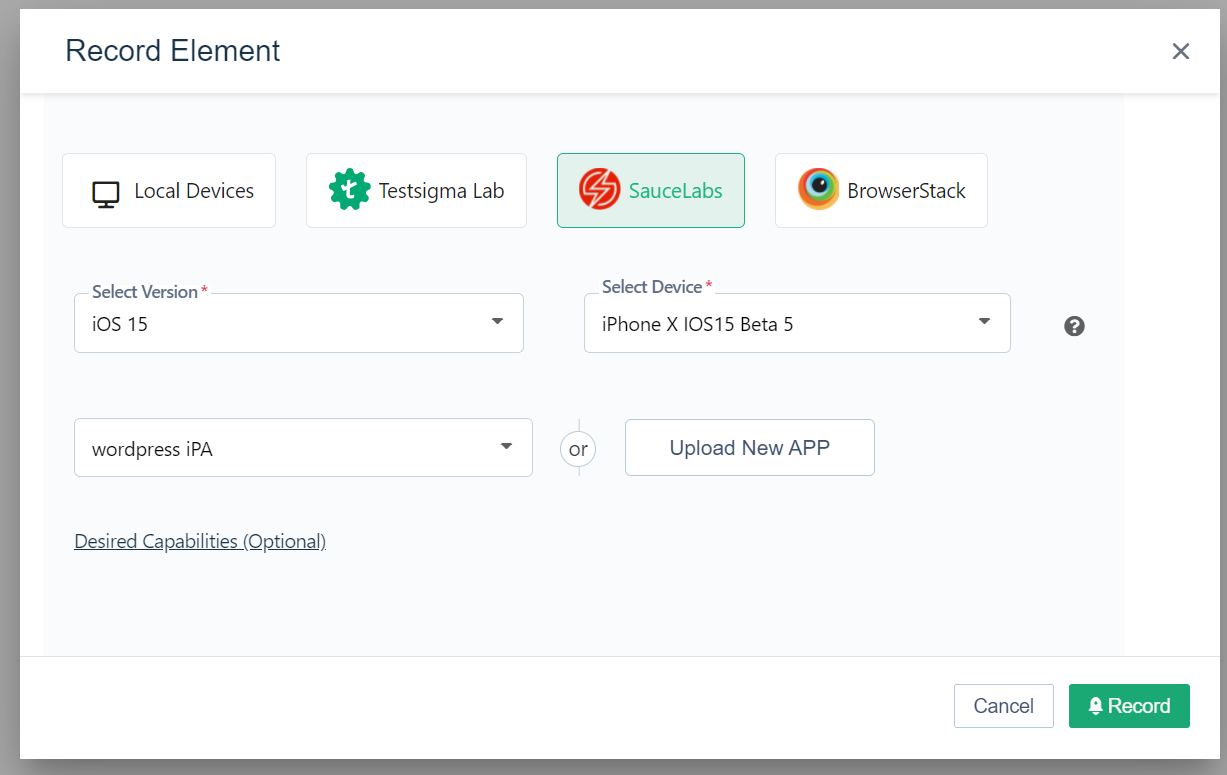
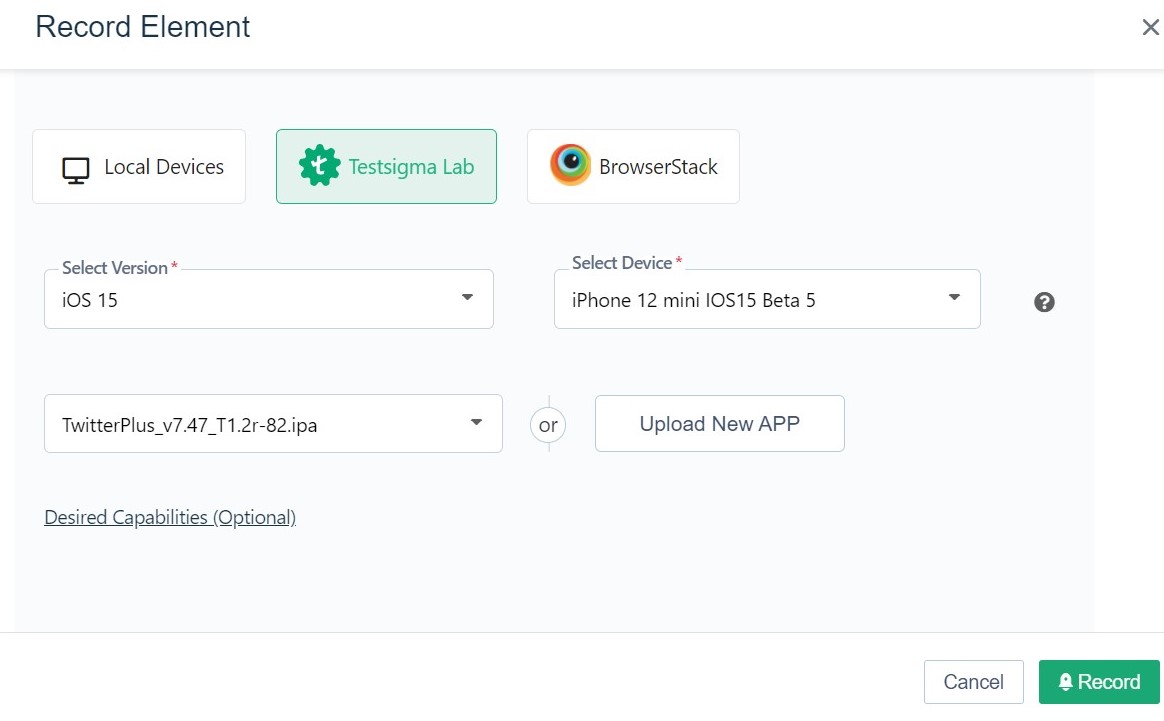
Step 2: A new window will appear that has a few options in rows.
123124

124-
![Options to select before you start recording](https://docs.testsigma.com/tutorials/videos/getting-started-ios/recorder-window.png)
125+
![Options to select before you start recording](https://docs.testsigma.com/images/tutorials/getting-started-ios/recorder-window.png)
125126

126127
Let’s break down each row.
127128

@@ -149,7 +150,7 @@ To familiarize with Testsigma, you may choose any application that is already av
149150

150151
For this, the Twitter app’s ipa file needs to be uploaded as discussed earlier. Click on **Upload**. Wait for the app to be uploaded.
151152

152-
![Options to select before recording](https://docs.testsigma.com/tutorials/videos/getting-started-ios/record-steps-ios-app-testing.jpg)
153+
![Options to select before recording](https://docs.testsigma.com/images/tutorials/getting-started-ios/record-steps-ios-app-testing.jpg)
153154

154155
Once done, click **Record**. Upon clicking **Record**, the Testsigma Mobile Recorder will be launched.
155156

@@ -159,7 +160,7 @@ New to Testsigma Mobile Recorder? [Here](https://testsigma.com/tutorials/test-ca
159160

160161
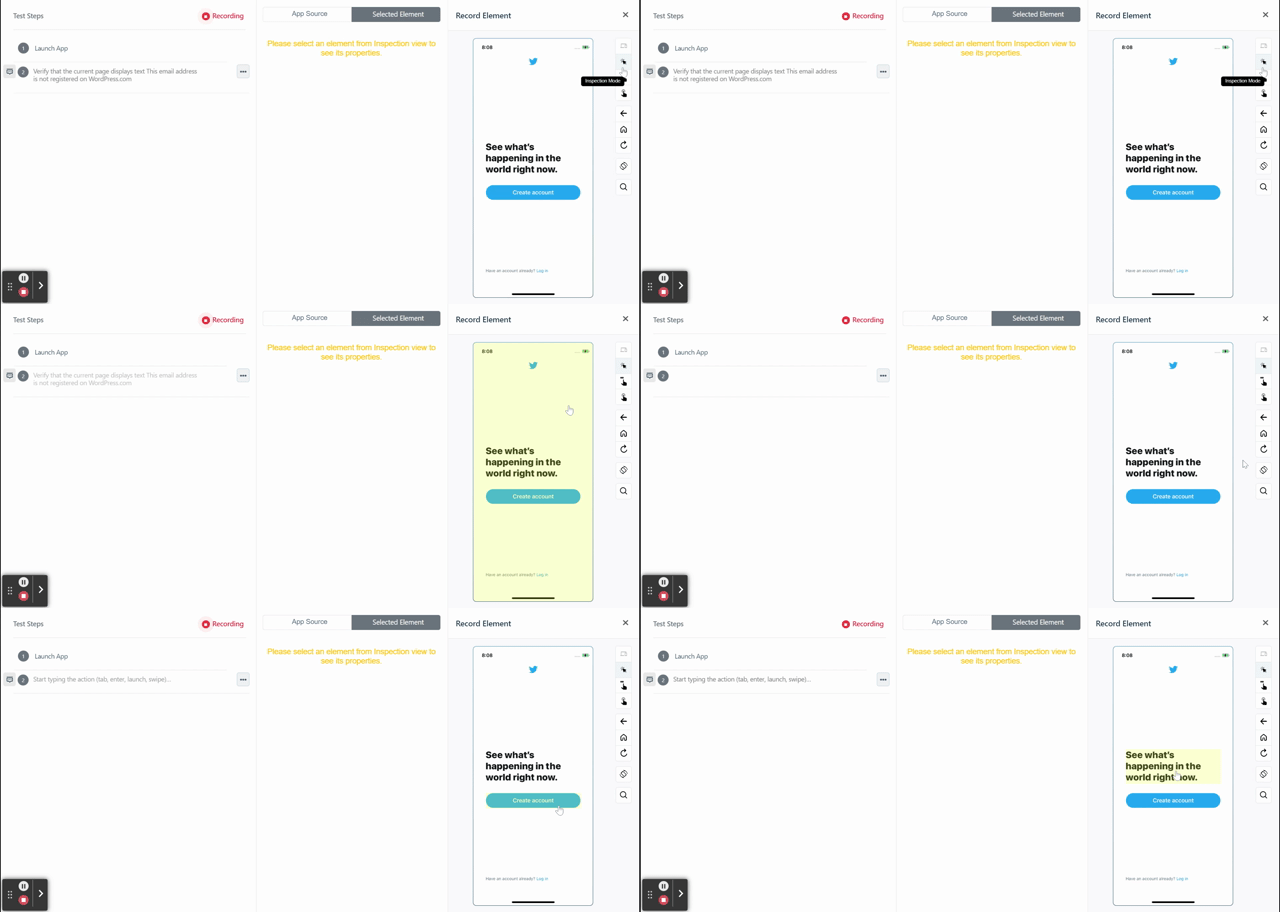
By default, the recorder will be in inspection mode (highlighted in yellow when you hover over any element).
161162

162-
![Inspection mode of test recorder](https://docs.testsigma.com/tutorials/videos/getting-started-ios/recorder-default-inspection-mode.gif)
163+
![Inspection mode of test recorder](https://docs.testsigma.com/images/tutorials/getting-started-ios/recorder-default-inspection-mode.gif)
163164

164165
Let’s try interacting with the Twitter app we just uploaded.
165166

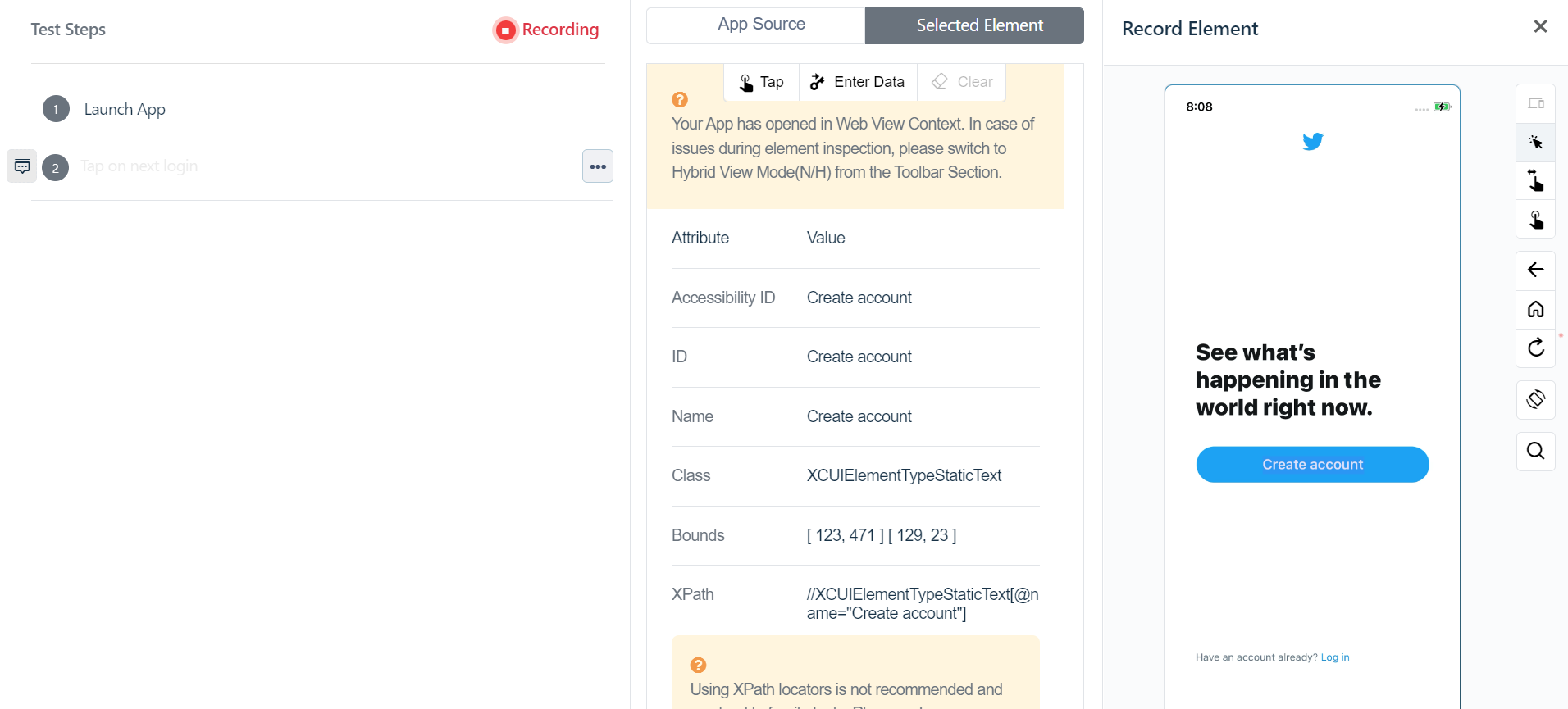
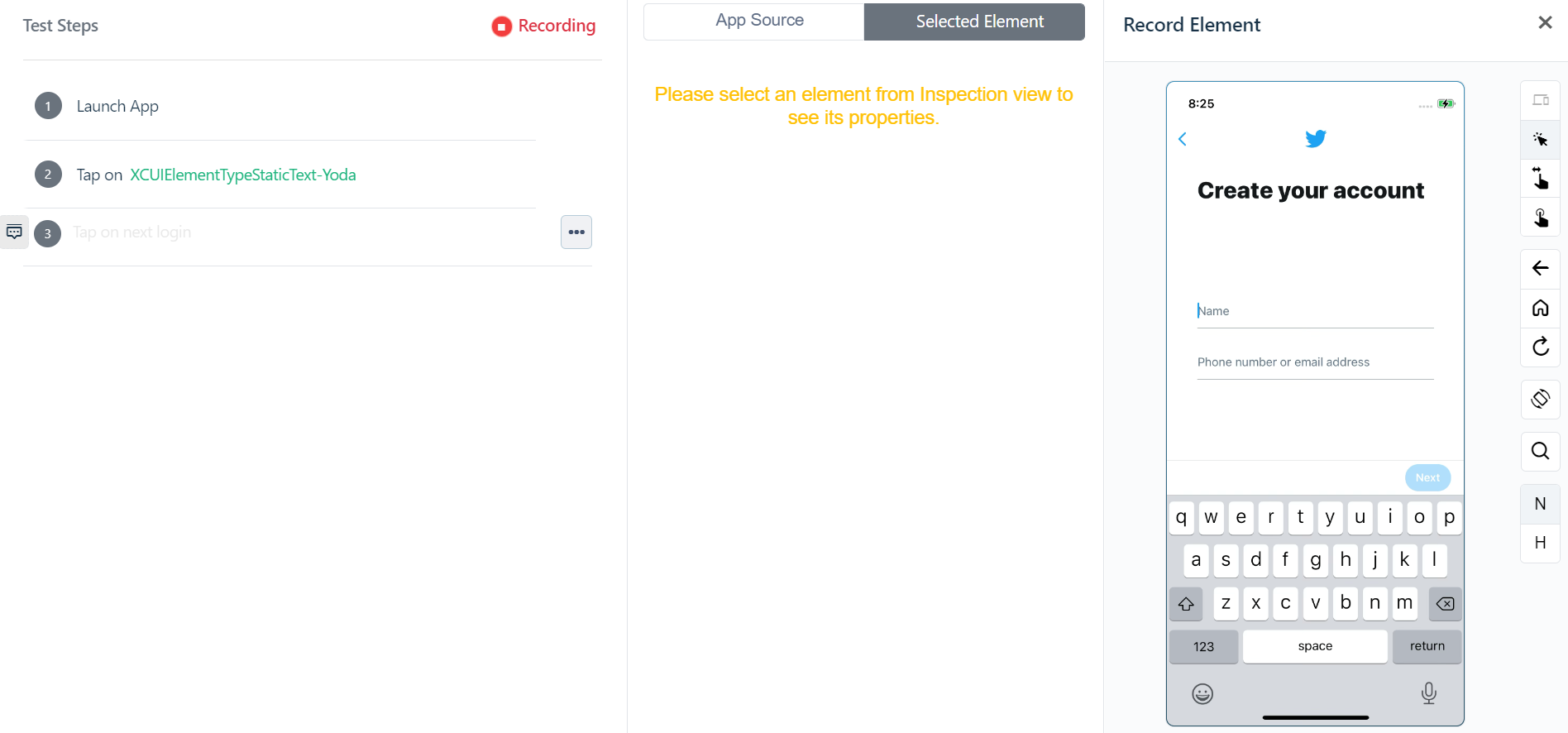
@@ -169,15 +170,15 @@ To tap on _“Create Account”_ that is displayed on the Twitter app screen, cl
169170

170171
You’d see a new pane appear in the centre.
171172

172-
![Clicking a button on the application screen](https://docs.testsigma.com/tutorials/videos/getting-started-ios/click-element.png)
173+
![Clicking a button on the application screen](https://docs.testsigma.com/images/tutorials/getting-started-ios/click-element.png)
173174

174175
At the top, you will find these options : **Tap, Enter Data and Clear.**
175176

176177
Click on **Tap.**
177178

178179
This will perform a click/tap action and will take you to the next screen on the Twitter app. Consecutively, you will notice that this will also generate a test step in natural language automatically.
179180

180-
![Perform a click/tap action](https://docs.testsigma.com/tutorials/videos/getting-started-ios/perform-tap-action.png)
181+
![Perform a click/tap action](https://docs.testsigma.com/images/tutorials/getting-started-ios/perform-tap-action.png)
181182

182183
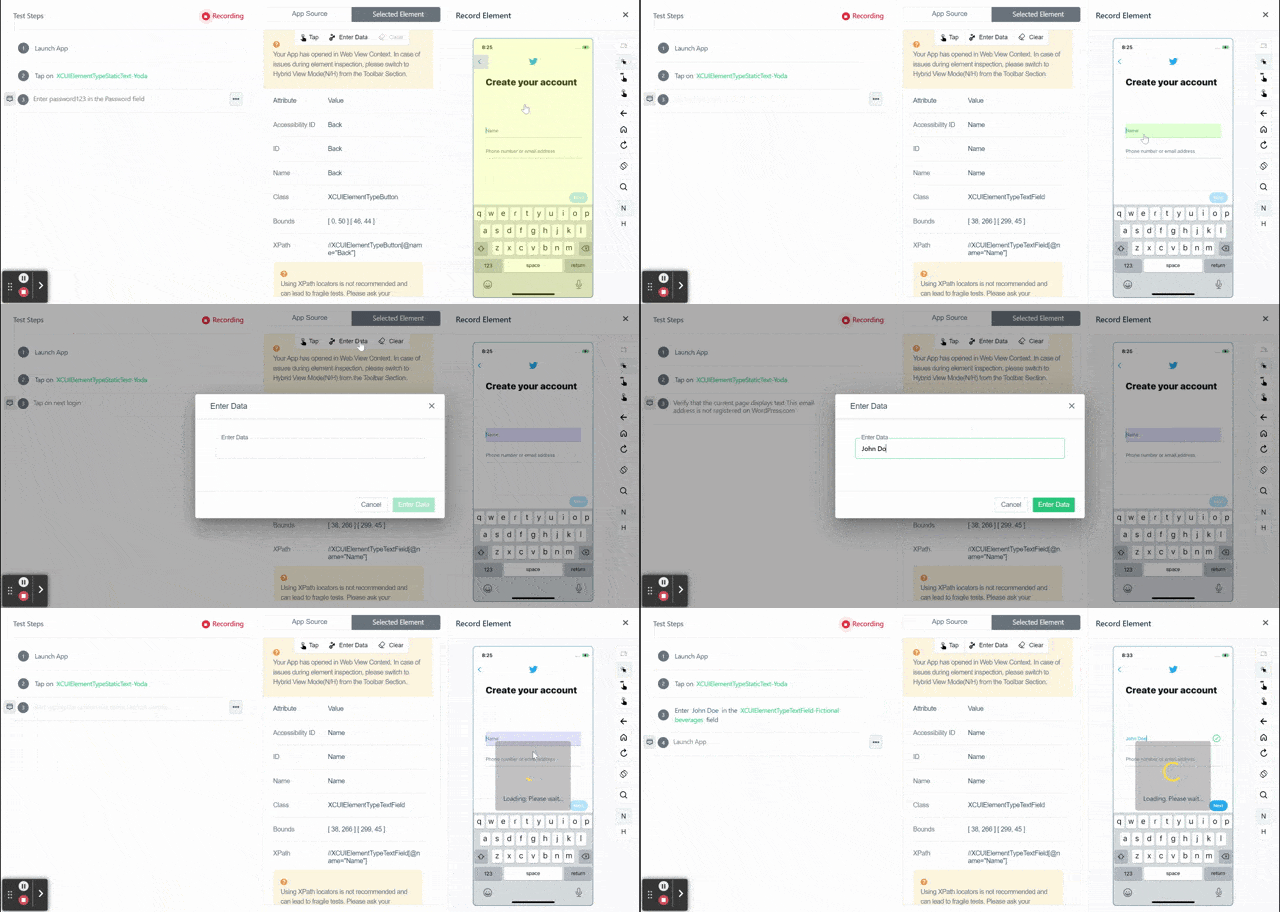
**Test Step 2.** Enter some data
183184

@@ -189,7 +190,7 @@ Choose **Enter Data** from the actions at the top of the centre pane.
189190

190191
Now all you need to do is type in the Name (here, _John Doe_) you wish to enter in the **Enter data** form that appears.
191192

192-
![Template to enter some values](https://docs.testsigma.com/tutorials/videos/getting-started-ios/enter-text-field.gif)
193+
![Template to enter some values](https://docs.testsigma.com/images/tutorials/getting-started-ios/enter-text-field.gif)
193194

194195
**Test Step 3.** Clear data
195196

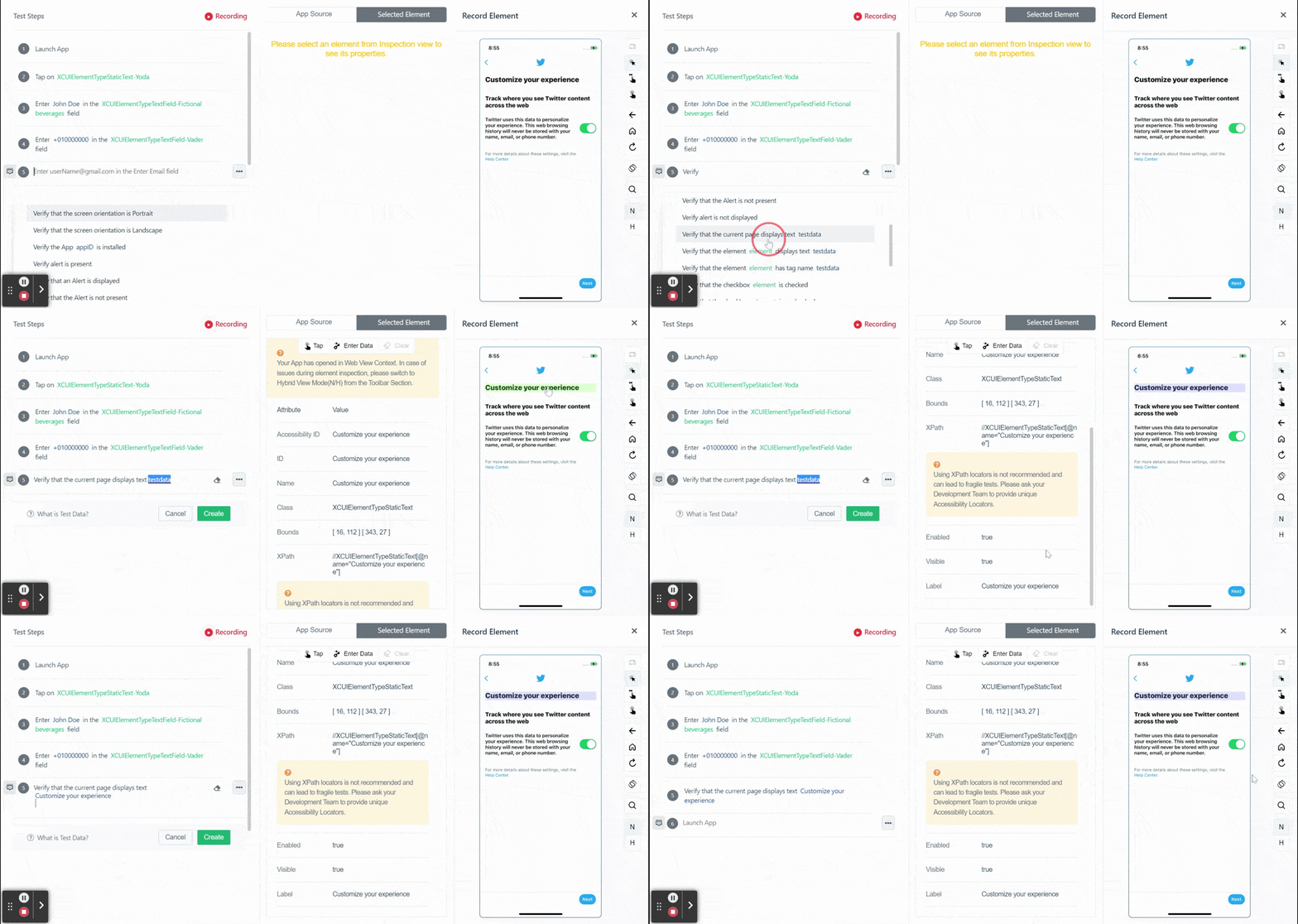
@@ -220,12 +221,12 @@ Since we are verifying a text, choose the **“Verify that the current page disp
220221

221222
You only need to replace the test data part with the actual text you copied, let’s say, _“Customize your experience”_ from the inspector.
222223

223-
![How to add a verify step](https://docs.testsigma.com/tutorials/videos/getting-started-ios/verify-nlp-template.gif)
224+
![How to add a verify step](https://docs.testsigma.com/images/tutorials/getting-started-ios/verify-nlp-template.gif)
224225

225226
Paste this in place of “test data”. Click **Create** and you are done!
226227

227228
Here’s a summary of the steps we discussed so far.
228-
[video link](https://docs.testsigma.com/tutorials/videos/getting-started-ios/recorded-steps-getting-started-testsigma-new.mp4)
229+
<iframe src="https://docs.testsigma.com/videos/tutorials/getting-started-ios/recorded-steps-getting-started-testsigma-new.mp4" width="600" height="400"></iframe>
229230

230231
To learn all other options available in the test recorder [click here](https://testsignma.com/docs/test-cases/create-steps-recorder/ios-apps/overview/).
231232

@@ -241,12 +242,12 @@ In this section you will learn:
241242
1. How to add steps and create a new element on the go
242243
Learn more about how to add steps manually from the test case details page [here](https://testsigma.com/docs/test-cases/create-steps-nl/ios-apps/add-steps-manually/).
243244

244-
![Add more steps manually at any time](https://docs.testsigma.com/tutorials/videos/getting-started-ios/add-nlp-test-steps-manually.gif)
245+
![Add more steps manually at any time](https://docs.testsigma.com/images/tutorials/getting-started-ios/add-nlp-test-steps-manually.gif)
245246

246247
2. How to add steps using existing elements
247248
You can reuse them at any time by choosing the element you want to use/reuse in the Test Case. Simply pick the name of the Element.
248249

249-
![Reuse an already created element in any test step easily](https://docs.testsigma.com/tutorials/videos/getting-started-ios/reuse-already-added-element-in-test-step.gif)
250+
![Reuse an already created element in any test step easily](https://docs.testsigma.com/images/tutorials/getting-started-ios/reuse-already-added-element-in-test-step.gif)
250251

251252
3. How to add a simple verification steps
252253
Use the Verify action as used in Test Step 5 in the previous section.
@@ -268,14 +269,14 @@ Click **Run Now**.
268269

269270
Here’s a video that shows you a sample test run done for the test case we created
270271

271-
[video link](https://docs.testsigma.com/tutorials/videos/getting-started-ios/dry-test-step-result-details-al-powered-test-automation-platform-testsigma.mp4)
272+
<iframe src="https://docs.testsigma.com/videos/tutorials/getting-started-ios/dry-test-step-result-details-al-powered-test-automation-platform-testsigma.mp4" width="600" height="400"></iframe>
272273

273274
---
274275
## [Debugging Results](#debugging-results)
275276

276277
From the video, you’d see that the one step failed.
277278

278-
![Drill down to test step failure](https://docs.testsigma.com/tutorials/videos/getting-started-ios/debug-test-step-failure.png)
279+
![Drill down to test step failure](https://docs.testsigma.com/images/tutorials/getting-started-ios/debug-test-step-failure.png)
279280

280281
Let’s debug this and try to understand the reason for failure with the help of the suggestion engine.
281282

0 commit comments

Comments
 (0)