You signed in with another tab or window. Reload to refresh your session.You signed out in another tab or window. Reload to refresh your session.You switched accounts on another tab or window. Reload to refresh your session.Dismiss alert
Copy file name to clipboardExpand all lines: tutorials/gateway-demo-signup/gateway-demo-signup.md
+62-23Lines changed: 62 additions & 23 deletions
Display the source diff
Display the rich diff
Original file line number
Diff line number
Diff line change
@@ -18,52 +18,91 @@ Detailed steps creating an account on the Gateway Demo System (also known as ES4
18
18
19
19
---
20
20
21
-
1. First we need to create an account on the Gateway System. The system will use your sap.com profile information to create the account.
21
+
[ACCORDION-BEGIN [Step 1: ](Go to sign up page)]
22
22
23
-
Click or enter this link in your browser: [https://supsignformsb03be6e80.us1.hana.ondemand.com/SUPSignForms/](https://supsignformsb03be6e80.us1.hana.ondemand.com/SUPSignForms/).
23
+
First we need to create an account on the Gateway System. The system will use your sap.com profile information to create the account.
24
24
25
-
> **Note:** In order to sign up for an account on the Gateway Demo System, you must have an account on **sap.com**. To register for an account on sap.com, navigate to [http://sap.com](http://go.sap.com/index.html), and then click on the **person icon** in the upper left hand corner of the web page. Once your account is set up, you can continue to register.
25
+
Click or enter this link in your browser: [https://supsignformsb03be6e80.us1.hana.ondemand.com/SUPSignForms/](https://supsignformsb03be6e80.us1.hana.ondemand.com/SUPSignForms/).
26
26
27
-
You should see this page:
27
+
> **Note:** In order to sign up for an account on the Gateway Demo System, you must have an account on **sap.com**. To register for an account on sap.com, navigate to [http://sap.com](http://go.sap.com/index.html), and then click on the **person icon** in the upper left hand corner of the web page. Once your account is set up, you can continue to register.
28
28
29
-
29
+
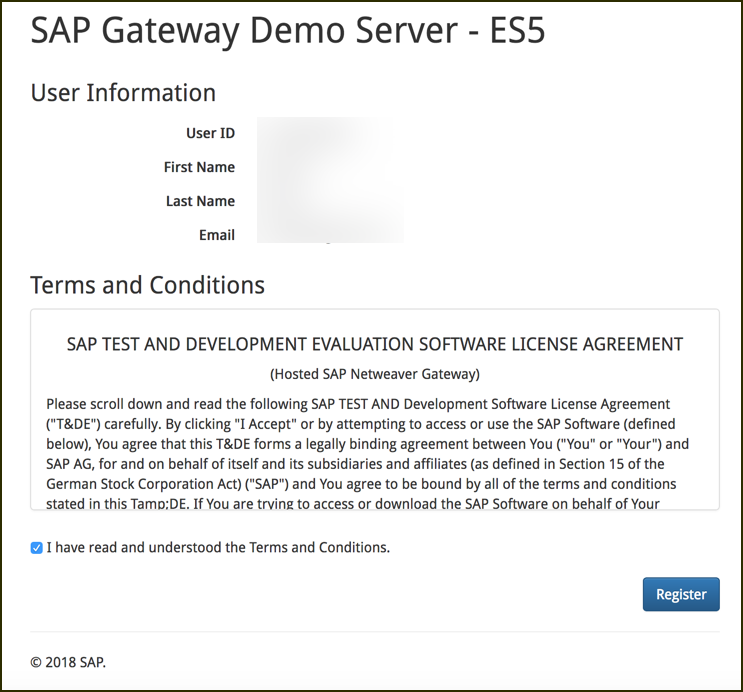
You should see this page:
30
30
31
-
2. Verify all of your *User Information* on the web page. Please be certain your email address is correct. If this address is incorrect, please fix it in your sap.com user profile.
31
+

32
32
33
-
Next, read the Terms and Conditions, and check the box next to the line *I have read and understood the Terms and Conditions.*
33
+
[DONE]
34
+
[ACCORDION-END]
34
35
35
-
When ready, click the **Register** button.
36
+
[ACCORDION-BEGIN [Step 2: ](Fill out registration form)]
36
37
37
-
The screen will change and the word *Success* will appear.
38
+
Verify all of your *User Information* on the web page. Please be certain your email address is correct. If this address is incorrect, please fix it in your sap.com user profile.
38
39
39
-
40
+
Next, read the Terms and Conditions, and check the box next to the line *I have read and understood the Terms and Conditions.*
40
41
42
+
When ready, click the **Register** button.
41
43
42
-
3. Check your email inbox. You will receive an email from *no-reply@sap.com* to your email account with your username and password.
44
+
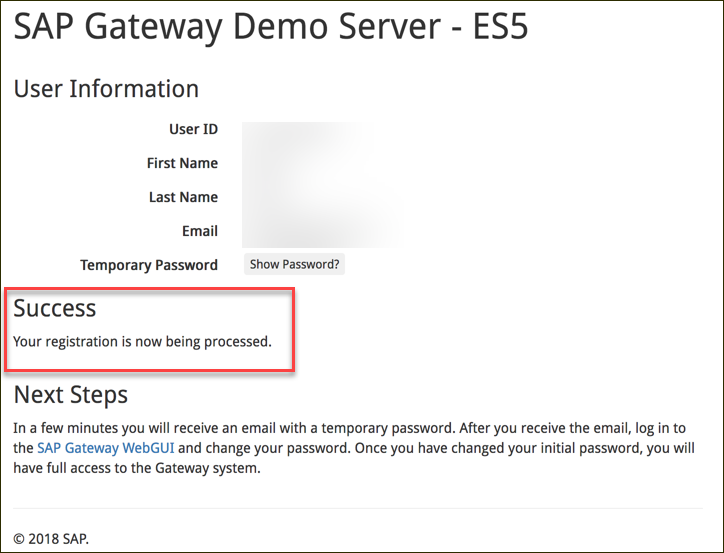
The screen will change and the word *Success* will appear.
43
45
44
-
> **Note:** If you do not receive an email, please check and make sure your email address, listed on the registration web page, is correct. If this address is correct, please wait for 5 minutes for the email to go through. Also, check your spam filters - this email is sometimes reported as spam. If the address is incorrect, change it on sap.com, and then start the registration process again.
46
+

45
47
46
-
This is an example of the registration confirmation email:
4. Once you received your registration email, go to the [SAP Gateway WebGUI](https://sapes4.sapdevcenter.com/). Enter the username and initial password from your email.
52
+
[ACCORDION-BEGIN [Step 3: ](Registration email)]
51
53
52
-
54
+
Check your email inbox. You will receive an email from *no-reply@sap.com* to your email account with your username and password.
53
55
54
-
5. The system will request that you change your initial password to a new password which only you know.
56
+
> **Note:** If you do not receive an email, please check and make sure your email address, listed on the registration web page, is correct. If this address is correct, please wait for 5 minutes for the email to go through. Also, check your spam filters - this email is sometimes reported as spam. If the address is incorrect, change it on sap.com, and then start the registration process again.
55
57
56
-
58
+
This is an example of the registration confirmation email:
57
59
58
-
6. When your password is changed, you will see a confirmation dialog.
[ACCORDION-BEGIN [Step 4: ](Go to the SAP Gateway Web UI)]
65
67
66
-
68
+
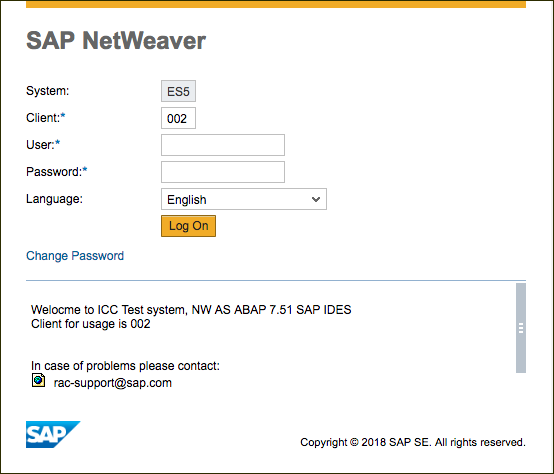
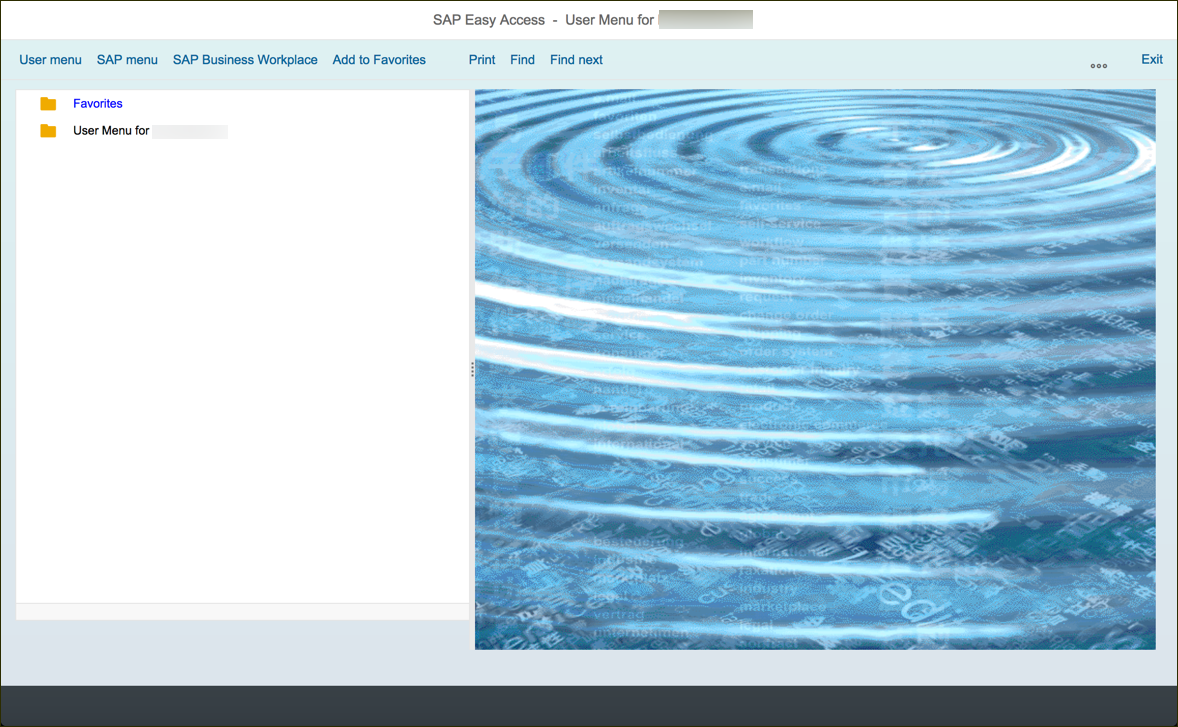
Once you received your registration email, go to the [SAP Gateway WebGUI](https://sapes4.sapdevcenter.com/). Enter the username and initial password from your email.
69
+
70
+

71
+
72
+
[DONE]
73
+
[ACCORDION-END]
74
+
75
+
76
+
[ACCORDION-BEGIN [Step 5: ](Change password)]
77
+
78
+
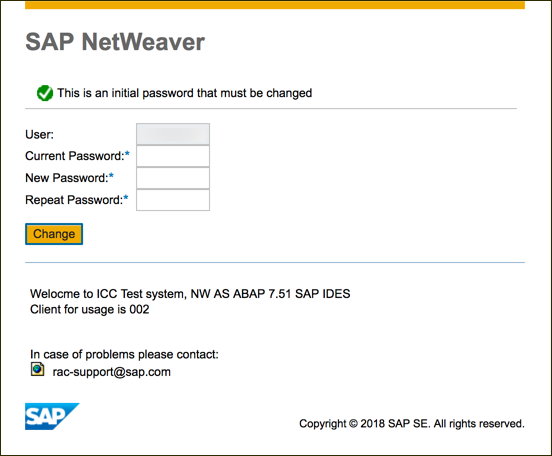
The system will request that you change your initial password to a new password which only you know.
79
+
80
+

- For SAP HANA development: [SAP HANA XSC basic development](http://go.sap.com/developer/tutorials/hana-web-development-workbench.html)
11
12
- For Mobile development [Create and deploy an app in the cloud series](http://go.sap.com/developer/tutorials/hcp-create-destination.html)
13
+
- For SAP HCP predictive services development: [Create a new HANA MDC instance](http://go.sap.com/developer/tutorials.html?link=hcpps-hana-create-mdc-instance.html)
12
14
- Select a tutorial from the [Tutorial Navigator](http://go.sap.com/developer/tutorial-navigator.html) or the [Tutorial Catalog](http://go.sap.com/developer/tutorials.html)
13
15
14
16
@@ -21,40 +23,84 @@ This is a simple 8 step tutorial to walk through signing up for an account on HA
21
23
22
24
### Time to Complete
23
25
**5 mins**
26
+
---
27
+
28
+
[ACCORDION-BEGIN [Step 1: ](Register for the SAP HANA Cloud Platform trial)]
29
+
30
+
Go to the [SAP HANA Cloud Platform](https://account.hanatrial.ondemand.com/) website and click on the **Register** button.
Fill out the Registration form and scroll to the bottom of the *Terms and Conditions* area to select the last checkbox, then click the **Register** button.
A web page opens and you will see that your account was activated. Click **Continue** to go back to the [SAP HANA Cloud Platform](https://account.hanatrial.ondemand.com) website and log in.
28
68
29
-
2. Fill out the Registration form and scroll to the bottom of the *Terms and Conditions* area to select the last checkbox, then click the **Register** button.
5. A web page opens and you will see that your account was activated. Click **Continue** to go back to the [SAP HANA Cloud Platform](https://account.hanatrial.ondemand.com) website and log in.
When the HCP Cockpit loads, you can review the News and Announcements or skip them by clicking **Close**.
52
95
53
-
8. When the HCP Cockpit loads, you can review the News and Announcements or skip them by clicking **Close**.
96
+

54
97
55
-

98
+
[DONE]
99
+
[ACCORDION-END]
100
+
56
101
57
102
## Next Steps
58
103
- For SAP HANA development: [SAP HANA XSC basic development](http://go.sap.com/developer/tutorials/hana-web-development-workbench.html)
59
104
- For Mobile development [Create and deploy an app in the cloud series](http://go.sap.com/developer/tutorials/hcp-create-destination.html)
105
+
- For SAP HCP predictive services development: [Create a new HANA MDC instance](http://go.sap.com/developer/tutorials.html?link=hcpps-hana-create-mdc-instance.html)
60
106
- Select a tutorial from the [Tutorial Navigator](http://go.sap.com/developer/tutorial-navigator.html) or the [Tutorial Catalog](http://go.sap.com/developer/tutorials.html)
0 commit comments