Note: Updates for Visual Studio 2017 and the latest version of ASP.NET coming soon!
First, install ASP.NET Core if you need it. This quick-start guide uses Visual Studio, which means that you'll need Visual Studio 2015 in order to use ASP.NET Core.
Next, if your version of Visual Studio does not already have the latest TypeScript, you can install it.
-
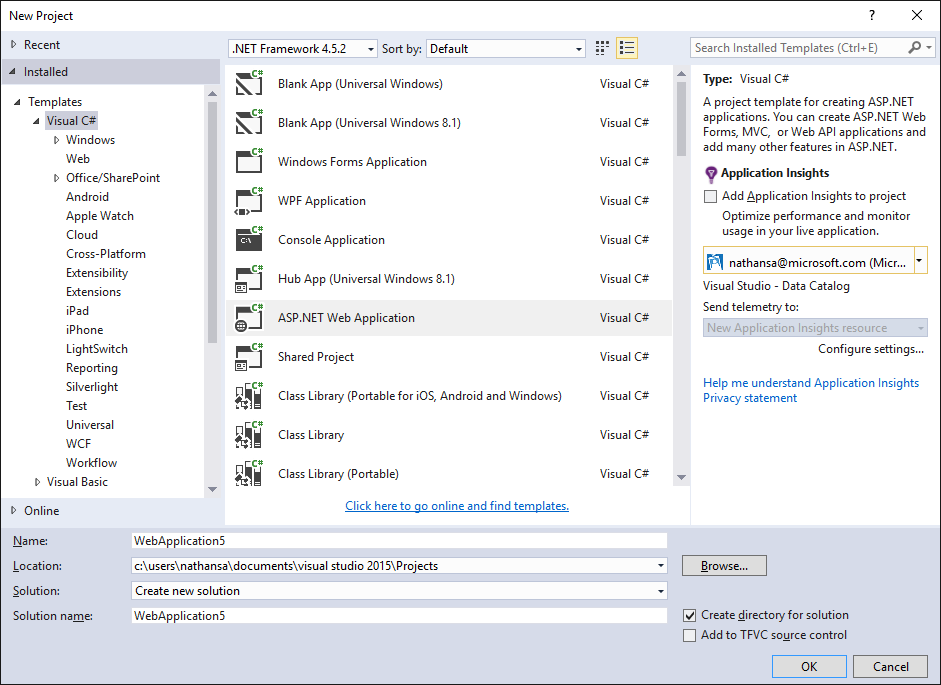
Choose File
-
Choose New Project (Ctrl + Shift + N)
-
Choose Visual C#
-
Choose ASP.NET Web Application
-
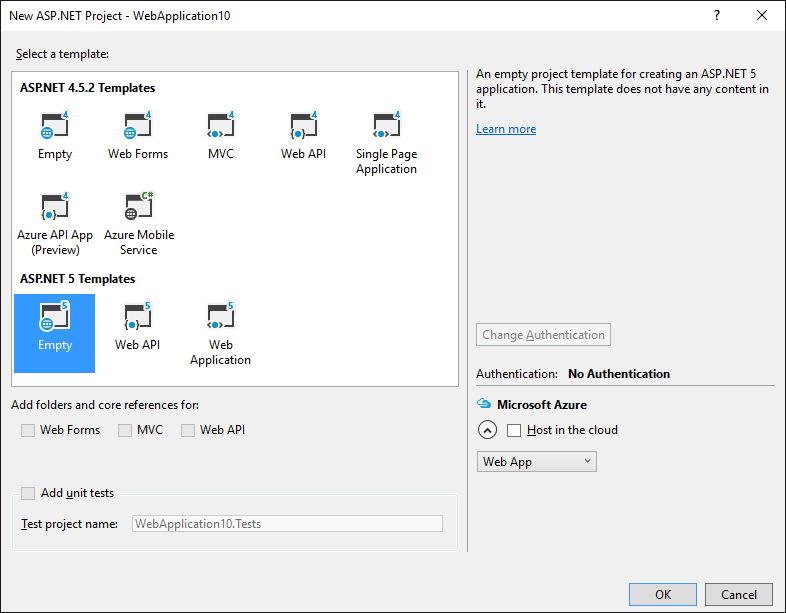
Choose ASP.NET 5 Empty
Let's uncheck "Host in the cloud" since we're going to run this locally.


Run the application and make sure that it works.
In project.json add another entry in "dependencies":
"Microsoft.AspNet.StaticFiles": "1.0.0-rc1-final"The resulting dependencies should look like this:
  "dependencies": {
    "Microsoft.AspNet.IISPlatformHandler": "1.0.0-rc1-final",
    "Microsoft.AspNet.Server.Kestrel": "1.0.0-rc1-final",
    "Microsoft.AspNet.StaticFiles": "1.0.0-rc1-final"
  },
Replace the body of Configure in Startup.cs with
public void Configure(IApplicationBuilder app)
{
    app.UseIISPlatformHandler();
    app.UseDefaultFiles();
    app.UseStaticFiles();
}The next step is to add a folder for TypeScript.

We'll just call it scripts.

Right click on scripts and click New Item.
Then choose TypeScript File (it may be in the .NET Core section) and name the file app.ts.

Type the following code into app.ts.
function sayHello() {
    const compiler = (document.getElementById("compiler") as HTMLInputElement).value;
    const framework = (document.getElementById("framework") as HTMLInputElement).value;
    return `Hello from ${compiler} and ${framework}!`;
}First we need to tell TypeScript how to build.
Right click on the scripts folder and click New Item.
Then choose TypeScript Configuration File and use the default name tsconfig.json.

Replace the default tsconfig.json with the following:
{
  "compilerOptions": {
      "noImplicitAny": true,
      "noEmitOnError": true,
      "sourceMap": true,
      "target": "es5"
  },
  "files": [
      "./app.ts"
  ],
  "compileOnSave": true
}
This is similar to the default, with the following differences:
- It sets
"noImplicitAny": true. - It explicitly lists
"files"instead of relying on"excludes". - It sets
"compileOnSave": true.
"noImplicitAny" is good idea whenever you're writing new code — you can make sure that you don't write any untyped code by mistake.
"compileOnSave" makes it easy to update your code in a running web app.
Now we need to set up NPM so we can download JavaScript packages.
Right click on the project and click New Item.
Then choose NPM Configuration File and use the default name package.json.
Inside "devDependencies" add "gulp" and "del":
"devDependencies": {
    "gulp": "3.9.0",
    "del": "2.2.0"
}
Visual Studio should start installing gulp and del as soon as you save the file. If not, right-click package.json and then Restore Packages.
Finally, add a new JavaScript file named gulpfile.js.
Put the following code inside:
/// <binding AfterBuild='default' Clean='clean' />
/*
This file is the main entry point for defining Gulp tasks and using Gulp plugins.
Click here to learn more. http://go.microsoft.com/fwlink/?LinkId=518007
*/

var gulp = require('gulp');
var del = require('del');

var paths = {
    scripts: ['scripts/**/*.js', 'scripts/**/*.ts', 'scripts/**/*.map'],
};

gulp.task('clean', function () {
    return del(['wwwroot/scripts/**/*']);
});

gulp.task('default', function () {
    gulp.src(paths.scripts).pipe(gulp.dest('wwwroot/scripts'))
});
The first line tells Visual Studio to run the task 'default' after the build finishes. It will also run the 'clean' task when you ask Visual Studio to clean the build.
Now right-click on gulpfile.js and click Task Runner Explorer.
If 'default' and 'clean' tasks don't show up, refresh the explorer:

Add a New Item named index.html inside wwwroot.
Use the following code for index.html:
<!DOCTYPE html>
<html>
<head>
    <meta charset="utf-8" />
    <script src="scripts/app.js"></script>
    <title></title>
</head>
<body>
    <div id="message"></div>
    <div>
        Compiler: <input id="compiler" value="TypeScript" onkeyup="document.getElementById('message').innerText = sayHello()" /><br />
        Framework: <input id="framework" value="ASP.NET" onkeyup="document.getElementById('message').innerText = sayHello()" />
    </div>
</body>
</html>- Run the project.
- You should see a message when you type in the input boxes:

- In Edge, press F12 and click the Debugger tab.
- Look in the first localhost folder, then src/app.ts
- Put a breakpoint on the line with
return. - Type in the boxes and confirm that the breakpoint hits in TypeScript code and that inspection works correctly.

That's all you need to know to include basic TypeScript in your ASP.NET project. Next we'll include Angular and write a simple Angular app.
Add the following "dependencies" to package.json to install Angular 2 and SystemJS:
  "dependencies": {
    "angular2": "2.0.0-beta.11",
    "systemjs": "0.19.24",
},Now that Angular 2 and its dependencies are installed, we need to enable TypeScript's experimental support for decorators.
We also need to add declarations for ES2015, since Angular uses core-js for things like Promise.
In the future decorators will be the default and these settings will not be needed.
Add "experimentalDecorators": true, "emitDecoratorMetadata": true to the "compilerOptions" section.
Next, add "lib": ["es2015", "es5", "dom"] to "compilerOptions" as well to bring in declarations from ES2015.
Finally, we'll need to add a new entry in "files" for another file, "./model.ts", which we'll create.
Our tsconfig should now look like this:
{
    "compilerOptions": {
        "noImplicitAny": true,
        "noEmitOnError": true,
        "sourceMap": true,
        "experimentalDecorators": true,
        "emitDecoratorMetadata": true,
        "target": "es5",
        "lib": [
            "es2015", "es5", "dom"
        ]
    },
    "files": [
        "./app.ts",
        "./model.ts",
        "./main.ts",
    ],
    "compileOnSave": true
}Finally, we need to make sure that the Angular files are copied as part of the build. We need to add:
- The paths to the library files.
- Add a
libtask to pipe the files towwwroot. - Add a dependendency on
libto thedefaulttask.
The updated gulpfile.js should look like this:
/// <binding AfterBuild='default' Clean='clean' />
/*
This file is the main entry point for defining Gulp tasks and using Gulp plugins.
Click here to learn more. http://go.microsoft.com/fwlink/?LinkId=518007
*/

var gulp = require('gulp');
var del = require('del');

var paths = {
    scripts: ['scripts/**/*.js', 'scripts/**/*.ts', 'scripts/**/*.map'],
    libs: ['node_modules/angular2/bundles/angular2.js',
           'node_modules/angular2/bundles/angular2-polyfills.js',
           'node_modules/systemjs/dist/system.src.js',
           'node_modules/rxjs/bundles/Rx.js']
};

gulp.task('lib', function () {
    gulp.src(paths.libs).pipe(gulp.dest('wwwroot/scripts/lib'))
});

gulp.task('clean', function () {
    return del(['wwwroot/scripts/**/*']);
});

gulp.task('default', ['lib'], function () {
    gulp.src(paths.scripts).pipe(gulp.dest('wwwroot/scripts'))
});
Again, make sure that Task Runner Explorer sees the new lib task after you save the gulpfile.
First, change the code in app.ts to:
import {Component} from "angular2/core"
import {MyModel} from "./model"

@Component({
    selector: `my-app`,
    template: `<div>Hello from {{getCompiler()}}</div>`
})
export class MyApp {
    model = new MyModel();
    getCompiler() {
        return this.model.compiler;
    }
}
Then add another TypeScript file in src named model.ts:
export class MyModel {
    compiler = "TypeScript";
}
And then another TypeScript file in src named main.ts:
import {bootstrap} from "angular2/platform/browser";
import {MyApp} from "./app";
bootstrap(MyApp);
Finally, change the code in index.html to the following:
<!DOCTYPE html>
<html>
<head>
    <meta charset="utf-8" />
    <script src="scripts/lib/angular2-polyfills.js"></script>
    <script src="scripts/lib/system.src.js"></script>
    <script src="scripts/lib/rx.js"></script>
    <script src="scripts/lib/angular2.js"></script>
    <script>
    System.config({
        packages: {
            'scripts': {
                format: 'cjs',
                defaultExtension: 'js'
            }
        }
    });
    System.import('scripts/main').then(null, console.error.bind(console));
    </script>
    <title></title>
</head>
<body>
    <my-app>Loading...</my-app>
</body>
</html>
This loads the app. When you run the ASP.NET application you should see a div that says "Loading..." and then updates to say "Hello from TypeScript".