The codeshell-intellijproject is an open-source plugin developed based on the CodeShell LLM that support various IDEs, including IntelliJ IDEA、Pycharm、GoLand. It serves as an intelligent coding assistant, offering support for various programming languages such as Python, Java, C/C++, JavaScript, Go, and more. This plugin provides features like code completion, code interpretation, code optimization, comment generation, and conversational Q&A to help developers enhance their coding efficiency in an intelligent manner.
- The CodeShell service is running
- The IDE version requirement is between 2022.2 and 2023.2
If you want to package from source code, please obtain the code first:
git clone https://github.com/WisdomShell/codeshell-intellij.git- The project uses Gradle to manage dependencies. Click the "Refresh" button to automatically reload dependencies.
- To run the plugin locally, navigate to
Gradle>CodeShell>Task>intellij>runIde. - Right-click on
runIdeand choose to start in Debug mode.
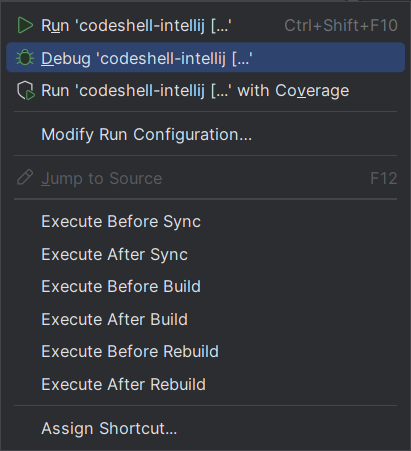
- Generate a Local Plugin Installation Package: Navigate to
Gradle>CodeShell>Task>intellij>buildPlugin. - Once the packaging task is completed, the plugin installation package can be found in the
build/distributionsdirectory at the project's root.
- Installation Process: Go to
Settings>Plugins>Install Plugin from Disk..., and in the opened file selection window, choose the plugin installation package

The llama_cpp_for_codeshell project provides the 4-bit quantized model service of the CodeShell LLM, named codeshell-chat-q4_0.gguf. Here are the steps to deploy the model service:
-
Linux / Mac(Apple Silicon Devices)
git clone https://github.com/WisdomShell/llama_cpp_for_codeshell.git
cd llama_cpp_for_codeshell
make
On macOS, Metal is enabled by default, which allows loading the model onto the GPU for significant performance improvements.
-
Mac(Non Apple Silicon Devices)
git clone https://github.com/WisdomShell/llama_cpp_for_codeshell.git
cd llama_cpp_for_codeshell
LLAMA_NO_METAL=1 make
For Mac users with non-Apple Silicon chips, you can disable Metal builds during compilation using the CMake options
LLAMA_NO_METAL=1orLLAMA_METAL=OFFto ensure the model runs properly. -
Windows
You have the option to compile the code using the Linux approach within the Windows Subsystem for Linux or you can follow the instructions provided in the llama.cpp repository. Another option is to configure w64devkit and then proceed with the Linux compilation method.
On the Hugging Face Hub, we provide three different models: CodeShell-7B, CodeShell-7B-Chat, and CodeShell-7B-Chat-int4. Below are the steps to download these models.
- To perform inference using the CodeShell-7B-Chat-int4 model, download the model to your local machine and place it in the path of the
llama_cpp_for_codeshell/modelsfolder as indicated in the code above.
git clone https://huggingface.co/WisdomShell/CodeShell-7B-Chat-int4/blob/main/codeshell-chat-q4_0.gguf
- For performing inference using CodeShell-7B and CodeShell-7B-Chat models, after placing the models in a local folder, you can utilize TGI (Text Generation Inference) to load these local models and initiate the model service.
- The
CodeShell-7B-Chat-int4model can be served as an API using theservercommand within thellama_cpp_for_codeshellproject.
./server -m ./models/codeshell-chat-q4_0.gguf --host 127.0.0.1 --port 8080Note: In cases where Metal is enabled during compilation, if you encounter runtime exceptions, you can explicitly disable Metal GPU inference by adding the -ngl 0 parameter in the command line to ensure the proper functioning of the model.
- CodeShell-7B and CodeShell-7B-Chat models, loading local models with TGI and starting the model service.
For users wishing to use NVIDIA GPUs for inference, the text-generation-inference project can be used to deploy the CodeShell Large Model. Below are the steps to deploy the model service:
After downloading the model from the Hugging Face Hub to your local machine, place the model under the path of the $HOME/models folder, and you can load the model locally.
git clone https://huggingface.co/WisdomShell/CodeShell-7B-ChatThe following command can be used for GPU-accelerated inference deployment with text-generation-inference:
docker run --gpus 'all' --shm-size 1g -p 9090:80 -v $HOME/models:/data \
        --env LOG_LEVEL="info,text_generation_router=debug" \
        ghcr.nju.edu.cn/huggingface/text-generation-inference:1.0.3 \
        --model-id /data/CodeShell-7B-Chat --num-shard 1 \
        --max-total-tokens 5000 --max-input-length 4096 \
        --max-stop-sequences 12 --trust-remote-code
For a more detailed explanation of the parameters, please refer to the text-generation-inference project documentation.
- Set the address for the CodeShell service
- Configure whether to enable automatic code completion suggestions
- Specify the maximum number of tokens for code completion
- Specify the maximum number of tokens for Q&A
- Configure the model runtime environment
Note: Different model runtime environments can be configured within the plugin. For the CodeShell-7B-Chat-int4 model, you can choose the Model Runtime Environmentoption in the Use CPU Mode(with llama.cpp) menu. However, for the CodeShell-7B and CodeShell-7B-Chat models, you should select the Use GPU Model(with TGI framework) option.

- Automatic Code Suggestions
During coding, when you stop typing, code suggestions will automatically trigger.
When the plugin provides code suggestions, they are displayed in gray at the editor's cursor location. You can press the Tab key to accept the suggestion or continue typing to ignore it.

- Explain/Optimize/Cleanse a Code Segment
- Generate Comments/Unit Tests for Code
- Check Code for Performance/Security Issues
In the IDE sidebar, open the plugin's Q&A interface. Select a portion of code in the editor, right-click to access the CodeShell menu, and choose the corresponding function. The plugin will provide relevant responses in the Q&A interface.

- Edit Questions and Rephrase Inquiries
- Request Fresh Responses for Any Question
- Interrupt During the Answering Process

Within the Q&A interface's code block, you can click the copy button to copy the code block or use the insert button to insert the code block's content at the editor's cursor location.
Apache 2.0