| title | Connect to your remote Linux computer in Visual Studio | Microsoft Docs | ||
|---|---|---|---|
| description | How to connect to a remote Linux machine from inside a Visual Studio C++ project. | ||
| ms.custom | |||
| ms.date | 07/20/2018 | ||
| ms.technology |
|
||
| ms.tgt_pltfrm | Linux | ||
| ms.topic | conceptual | ||
| ms.assetid | 5eeaa683-4e63-4c46-99ef-2d5f294040d4 | ||
| author | corob-msft | ||
| ms.author | corob | ||
| ms.workload |
|
When building a C++ Linux project in Visual Studio, Linux code is copied to your remote Linux computer and then compiled based on Visual Studio settings. To set up this remote connection:
-
Build the project for the first time or manually create a new entry by selecting Tools > Options and then open the Cross Platform > Connection Manager node and click the Add button.

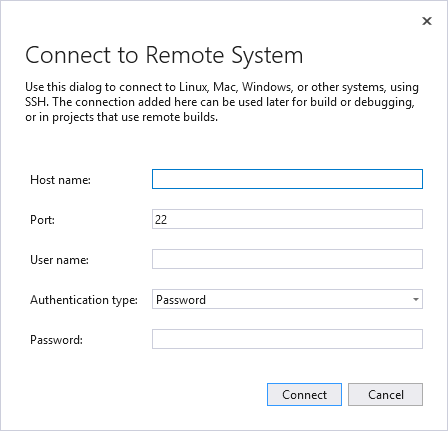
In either scenario, the Connect to Remote System window will be displayed.
-
Enter the following information:
Entry Description Host Name Name or IP address of your target device Port Port that the SSH service is running on, typically 22 User name User to authenticate as Authentication type Password or Private Key are both supported Password Password for the entered user name Private key file Private key file created for ssh connection Passphrase Passphrase used with private key selected above -
Click the Connect button to attempt a connection to the remote computer. If the connection fails, the entry boxes which need to be changed will be outlined in red.


