# Pipeline Intelligence

{% hint style="info" %}
Some Pipeline Intelligence AI features are in private beta. To request access, please fill out this [form here](https://forms.gle/hpJ5d4AAvodwFkGE8).
{% endhint %}

Pipeline Intelligence is a suite of recommendations and AI-powered features that help you automate your pipeline configuration. Pipeline Intelligence allows you to avoid manual configuration and complex OTTL syntax, and instead use natural language descriptions and intelligent data analysis to quickly build and optimize your pipelines.

With Pipeline Intelligence, you can:

* Automatically identify and categorize log types from your telemetry data
* Standardize log types for Google SecOps ingestion
* Generate processors using natural language
* Parse complex telemetry into structured data
* Get intelligent recommendations for pipeline improvements

### Pipeline Intelligence Recommendations

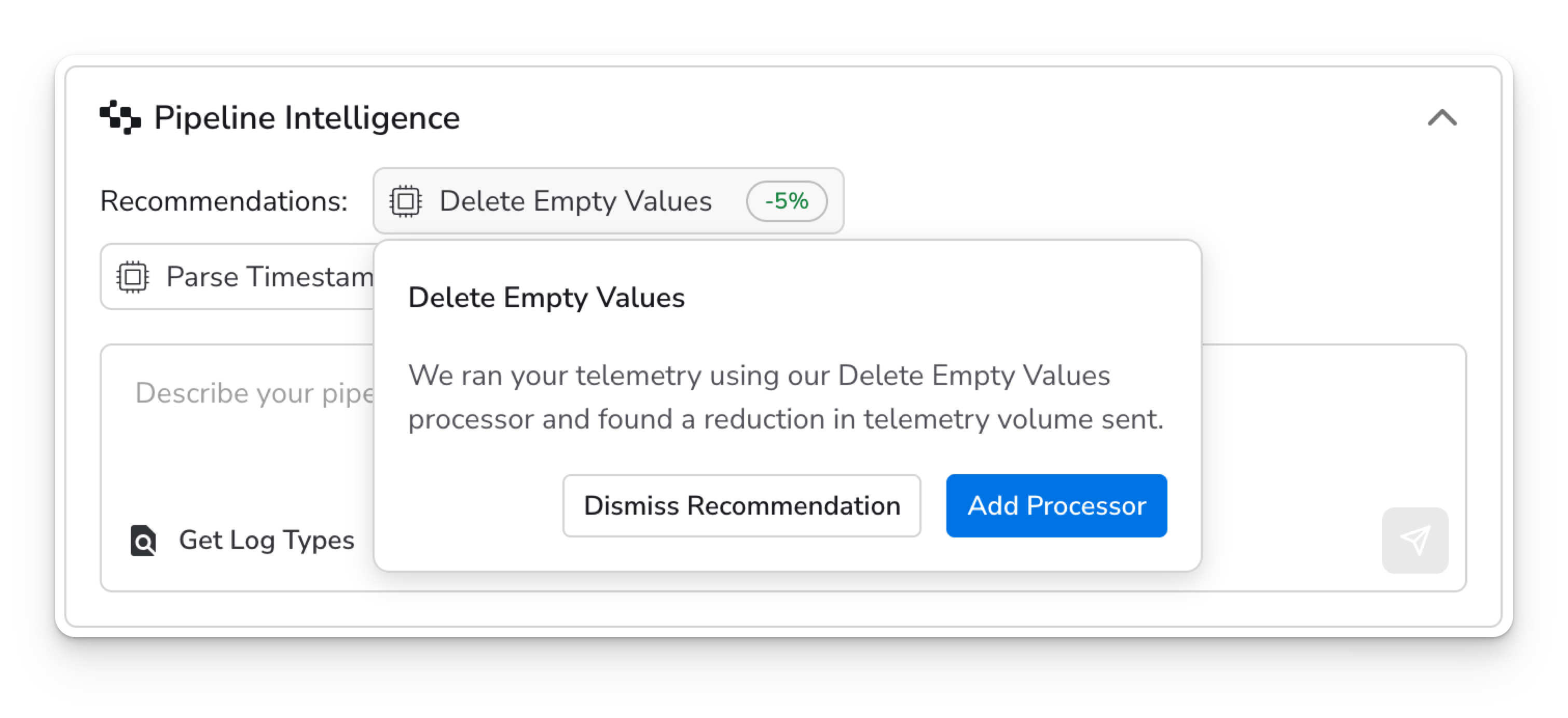
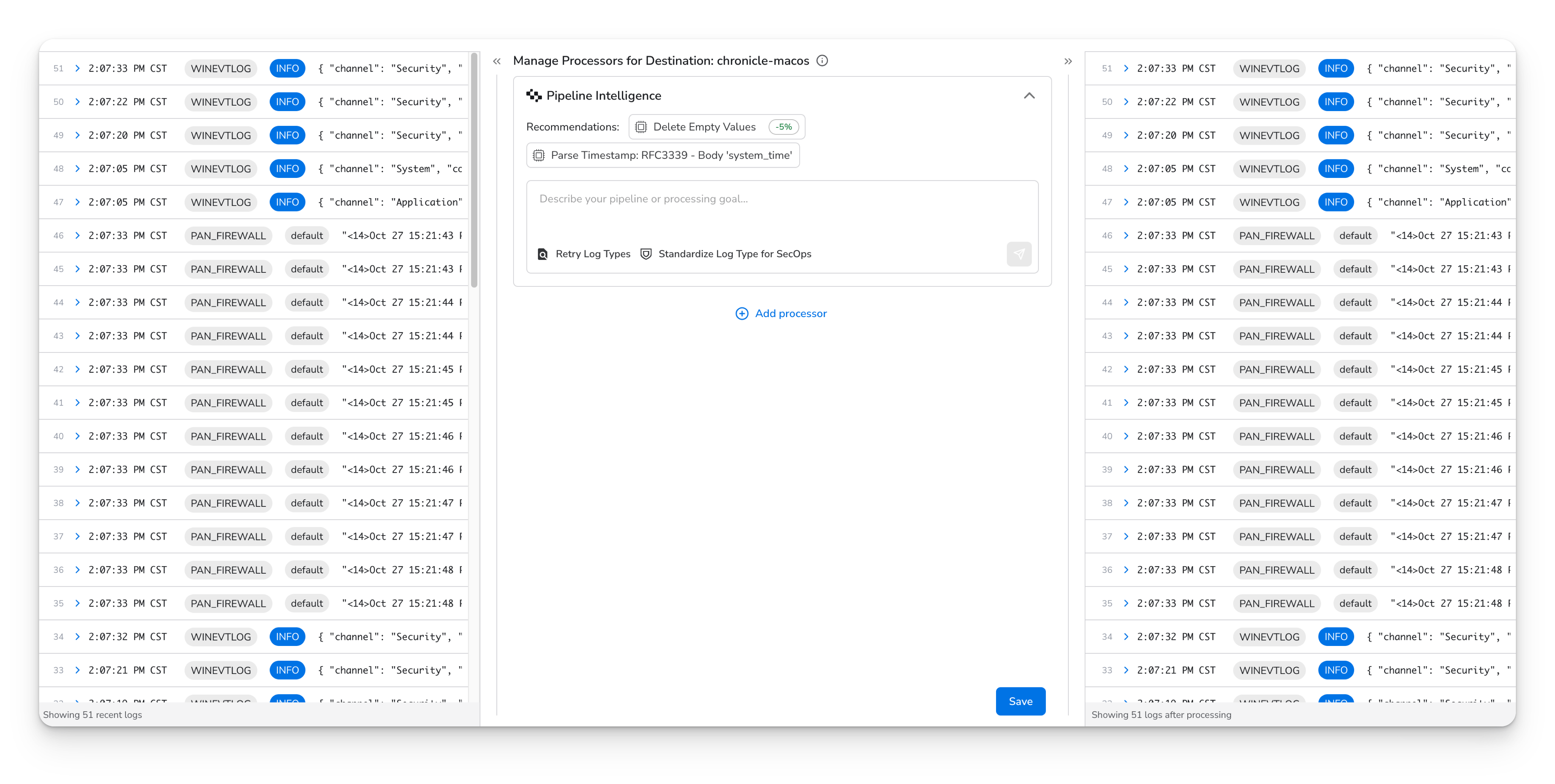
* Pipeline Intelligence analyzes your telemetry data and provides context-aware recommendations that can help improve your pipeline. These recommendations do things like add necessary fields, remove redundant fields, and parse data.

<figure><img src="https://3570577618-files.gitbook.io/~/files/v0/b/gitbook-x-prod.appspot.com/o/spaces%2FDBruzp1JKFyzeaBOInfR%2Fuploads%2F1OK3lCyklWxhB6RCxJ6D%2Fimage.png?alt=media&#x26;token=180813e7-828c-4334-8a18-be3719ccc91c" alt=""><figcaption></figcaption></figure>

### Migrate Configurations

Pipeline Intelligence can convert existing configurations from several vendors into Bindplane configurations. You can provide your current configuration file, run the Pipeline Intelligence analysis, review the compatible resources, and create a configuration.&#x20;

<figure><img src="https://3570577618-files.gitbook.io/~/files/v0/b/gitbook-x-prod.appspot.com/o/spaces%2FDBruzp1JKFyzeaBOInfR%2Fuploads%2Feuhxsd3xnY0MRYhMdKLk%2Fotel-step-three.png?alt=media&#x26;token=344ea687-efc4-44a0-94ac-1d6c710a727c" alt=""><figcaption></figcaption></figure>

<figure><img src="https://3570577618-files.gitbook.io/~/files/v0/b/gitbook-x-prod.appspot.com/o/spaces%2FDBruzp1JKFyzeaBOInfR%2Fuploads%2FZLuh9VWvusskLUYLgeT2%2Fotel-configuration.jpg?alt=media&#x26;token=ed113549-303a-48d2-b41b-1aaec62d8e2a" alt=""><figcaption></figcaption></figure>

Bindplane currently supports migration for the following configurations:

#### OpenTelemetry

Pipeline Intelligence will analyze an OpenTelemetry configuration and return compatible sources, processors, and destinations. Resources that are available in your available components but not as a Bindplane resource will be shown as a custom resource.&#x20;

{% hint style="info" %}
The OpenTelemetry migrator is only available for Enterprise, Bindplane Enterprise (Google Edition), and Honeycomb licenses.
{% endhint %}

#### Chronicle Forwarder

Pipeline Intelligence will map Splunk, syslog, and file collector types into Bindplane sources, add processors for standardization, and create a Google SecOps destination.

#### Splunk Universal Forwarder

Pipeline Intelligence will map several Splunk inputs – Monitor, Windows Event Log Monitor, TCP, UDP, Batch – into Bindplane sources. Pipeline Intelligence will map TCP and HTTP outputs to corresponding Bindplane destinations.&#x20;

### Snapshot View

Within the expanded snapshot row view, there are several helpful Pipeline Intelligence features for logs. When expanding the row, Pipeline Intelligence will automatically detect the log's log type and body format. Actions will appear for parsing or standardization, if needed.

<figure><img src="https://3570577618-files.gitbook.io/~/files/v0/b/gitbook-x-prod.appspot.com/o/spaces%2FDBruzp1JKFyzeaBOInfR%2Fuploads%2Fj1iNVkfMLCMcfsENmAsF%2FpipelineIntelligenceSnapshotView.png?alt=media&#x26;token=405b8d84-4a04-432c-966a-6638ebb4b936" alt=""><figcaption></figcaption></figure>

#### Validate SecOps Parser

<figure><img src="https://3570577618-files.gitbook.io/~/files/v0/b/gitbook-x-prod.appspot.com/o/spaces%2FDBruzp1JKFyzeaBOInfR%2Fuploads%2F1sJ0o3e9ajXodYXKBcIt%2FvalidateSecOpsParser.png?alt=media&#x26;token=c0f7e649-0789-4d74-9d9b-ecaa1421e8a9" alt="" width="563"><figcaption></figcaption></figure>

The Validate SecOps Parser action lets you quickly confirm that your logs will be parsed correctly when ingested to Google SecOps. Use it on the right side of the snapshot view when a log is expanded (see the Snapshot View screenshot above) to validate a SecOps parser for the detected log type. A dropdown will be displayed with immediate feedback, such as parsed events or validation errors, without waiting for data to be displayed in Google SecOps.

This action only appears when viewing a snapshot for a processor sending telemetry to a Google SecOps destination. It also requires a connected [Google SecOps Integration](https://docs.cloud.google.com/chronicle/docs/ingestion/data-processing-pipeline) in your Bindplane project in order to connect with your SecOps tenant.

## AI Features

{% hint style="info" %}
Pipeline Intelligence AI features are only available for Enterprise, Bindplane Enterprise (Google Edition), and Honeycomb licenses.
{% endhint %}

### Get Log Types

Automatically identify log types from your log snapshot data.

<figure><img src="https://3570577618-files.gitbook.io/~/files/v0/b/gitbook-x-prod.appspot.com/o/spaces%2FDBruzp1JKFyzeaBOInfR%2Fuploads%2Fh9iDDybhg4cGcoONmdpo%2Fimage.png?alt=media&#x26;token=bee00d21-fd80-443a-b17d-eddbcdbb5e73" alt=""><figcaption></figcaption></figure>

#### How it works:

1. Click "Get Log Types" from the Pipeline Intelligence panel
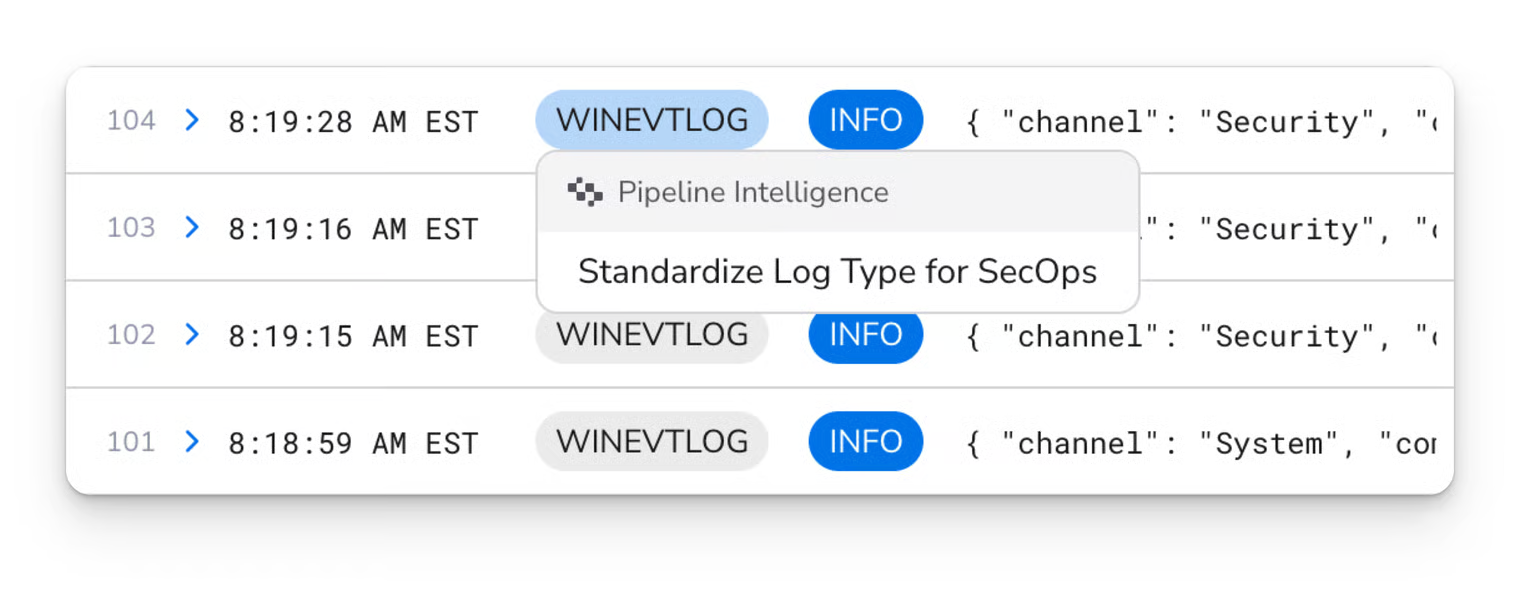
2. Pipeline Intelligence will begin to analyze and stream output of generated log types.
3. Log types are automatically identified and displayed as chips in the snapshot console.
4. You can click on any log type chip to bring up additional actions to take on that log type.

<figure><img src="https://3570577618-files.gitbook.io/~/files/v0/b/gitbook-x-prod.appspot.com/o/spaces%2FDBruzp1JKFyzeaBOInfR%2Fuploads%2F2gmt2ZKYgmPTqna7ABac%2Fimage.png?alt=media&#x26;token=248bcf30-4e64-405a-8b07-5a41527764b2" alt=""><figcaption></figcaption></figure>

### Standardize Log Type for SecOps

Automatically generate a Google SecOps standardization processor for specific log types.

#### How it works:

1. Click into a processor node that has a Google SecOps source connected to it.
2. Generate log types for the snapshot (steps shown [above](#get-log-types)).
3. After generating log types, Pipeline Intelligence will recommend a new action: "Standardize Log Type for SecOps".
4. Select a log type from the drop down (or choose "All Log Types" to standardize multiple types)
5. Click "Generate" to create the standardization processor with the appropriate log type and conditional statement

### Generate Processors

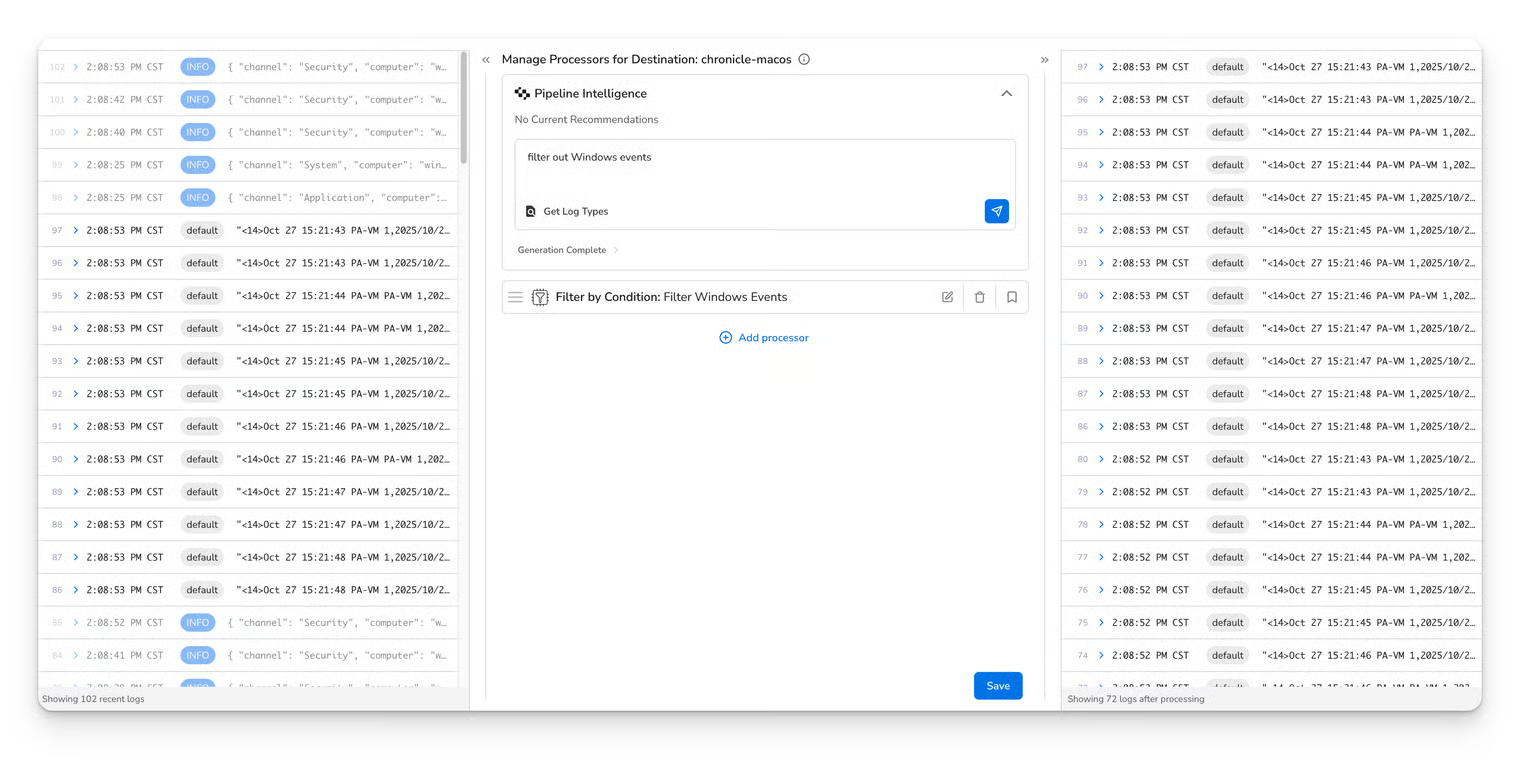
Create processors using natural language descriptions of what you want to accomplish.

<figure><img src="https://3570577618-files.gitbook.io/~/files/v0/b/gitbook-x-prod.appspot.com/o/spaces%2FDBruzp1JKFyzeaBOInfR%2Fuploads%2F3Bmr2PeN5Xk2yxnXA2kJ%2Fimage.png?alt=media&#x26;token=a9e0d54d-9c81-4e54-81f7-48aecb73e9f7" alt=""><figcaption></figcaption></figure>

#### How it works:

1. Enter a description in the Pipeline Intelligence input field
   1. Examples:
      1. "Filter my logs to only let Windows Events through"
      2. "Batch my logs to send to Google SecOps"
      3. "Create a new attribute to keep track of the host name."
      4. "Parse JSON logs and extract the user\_id field"
2. Click "Generate"
3. Pipeline Intelligence will analyze your pipeline and create processors to accomplish your goal.
4. Processors are automatically added to your pipeline. You may modify or delete the generated processors.

### Parse Field

Automatically create parsing processors to extract structured data from input fields.

#### How it works:

1. In the snapshot console, click on any log body, attribute, or resource field.
2. Select "Parse Field" from the Pipeline Intelligence menu
3. Review the field preview showing the data to be parsed
4. Click "Generate Parser" to create the appropriate parsing processor
5. Pipeline Intelligence detects the format of log (JSON, CSV, Key-Value, XML, other) and creates the corresponding processor to parse fields.

### Parse with Regex

The Parse with Regex processor contains a "Generate with Pipeline Intelligence" button. This button behaves similar to Parse Field, but solely focuses on creating a regular expression.

#### How it works:

1. Specify a Source Field Type and Source Field (leave empty to use the body).
2. Click "Generate with Pipeline Intelligence"
3. Pipeline Intelligence will generate a regex to parse the specified field.

## Best Practices

* Always review AI-generated processors before deploying to production. While AI is designed to create correct configurations, it may make mistakes.
* Things to verify:
  * Field paths match your actual data structure
  * Conditions and filters work as expected
  * Processor order is correct for your use case
* Begin with simple requests and gradually add complexity.
* Use multiple Pipeline Intelligence features together:
  * Use "Get Log Types" to identify log types
  * Use "Standardize Log Types for SecOps" on those log types if needed
  * Use "Parse Field" to parse fields if needed
  * Use "Generate Processors" to add any transformations

## How your data is used

<table><thead><tr><th width="166.5">Feature</th><th width="147.25">Capability</th><th>Provider(s)</th><th width="170">Model</th><th width="117.5">Data Used for Model Training?</th><th width="121">Uses Generative AI?</th></tr></thead><tbody><tr><td><a href="https://docs.bindplane.com/feature-guides/pipeline-intelligence#generate-processors">Generate Processors</a></td><td>Processor generation</td><td><a href="https://docs.cloud.google.com/gemini/docs/discover/data-governance">Google Gemini</a></td><td><code>gemini-2.5-flash</code></td><td>No</td><td>Yes</td></tr><tr><td><a href="https://docs.bindplane.com/feature-guides/pipeline-intelligence#get-log-types">Get Log Types</a></td><td>Log classification</td><td><a href="https://docs.cloud.google.com/gemini/docs/discover/data-governance">Google Gemini</a></td><td><code>gemini-2.5-flash-lite</code></td><td>No</td><td>Yes</td></tr><tr><td><a href="https://docs.bindplane.com/feature-guides/pipeline-intelligence#snapshot-view">Get Log Type and Body Format</a></td><td>Log classification</td><td><a href="https://docs.cloud.google.com/gemini/docs/discover/data-governance">Google Gemini</a></td><td><code>gemini-2.5-flash-lite</code></td><td>No</td><td>Yes</td></tr><tr><td><a href="https://docs.bindplane.com/feature-guides/pipeline-intelligence#chronicle-forwarder">Migrate Configurations (Chronicle Forwarder)</a></td><td>Config conversion</td><td>—</td><td>—</td><td>—</td><td>No</td></tr><tr><td><a href="https://docs.bindplane.com/feature-guides/pipeline-intelligence#opentelemetry">Migrate Configurations (OTel)</a></td><td>Config conversion</td><td><a href="https://docs.cloud.google.com/gemini/docs/discover/data-governance">Google Gemini</a></td><td><code>gemini-2.5-flash</code></td><td>No</td><td>Yes</td></tr><tr><td><a href="https://docs.bindplane.com/feature-guides/pipeline-intelligence#splunk-universal-forwarder">Migrate Configurations (Splunk Universal Forwarder)</a></td><td>Config conversion</td><td>—</td><td>—</td><td>—</td><td>No</td></tr><tr><td><a href="https://docs.bindplane.com/feature-guides/pipeline-intelligence#parse-field">Parse Field</a></td><td>Field parsing</td><td><a href="https://docs.cloud.google.com/gemini/docs/discover/data-governance">Google Gemini</a></td><td><code>gemini-2.5-flash</code></td><td>No</td><td>Yes</td></tr><tr><td><a href="https://docs.bindplane.com/feature-guides/pipeline-intelligence#parse-with-regex">Parse with Regex</a></td><td>Regex generation</td><td><a href="https://docs.cloud.google.com/gemini/docs/discover/data-governance">Google Gemini</a></td><td><code>gemini-2.5-flash</code></td><td>No</td><td>Yes</td></tr><tr><td><a href="https://docs.bindplane.com/feature-guides/pipeline-intelligence#pipeline-intelligence-recommendations">Pipeline Intelligence Recommendations</a></td><td>Processor recommendations</td><td><a href="https://docs.cloud.google.com/gemini/docs/discover/data-governance">Google Gemini</a></td><td><code>gemini-2.5-flash</code></td><td>No</td><td>Yes</td></tr><tr><td><a href="https://docs.bindplane.com/feature-guides/pipeline-intelligence#standardize-log-type-for-secops">Standardize Log Type for SecOps</a></td><td>Processor generation</td><td><a href="https://docs.cloud.google.com/gemini/docs/discover/data-governance">Google Gemini</a></td><td><code>gemini-2.5-flash</code></td><td>No</td><td>Yes</td></tr><tr><td><a href="https://docs.bindplane.com/feature-guides/pipeline-intelligence#validate-secops-parser">Validate SecOps Parser</a></td><td>Parser validation</td><td>—</td><td>—</td><td>—</td><td>No</td></tr></tbody></table>

When AI features are enabled, only the minimal input data needed to generate a response (such as log structure and content snippets) is sent for processing. We do not store AI inputs after processing. Data is used solely during transmission to generate a response and is not retained.

Anonymized and de-identified data may be used to evaluate and improve Bindplane's AI features. Identifiable personal information is never used for this purpose.

Pipeline Intelligence AI features are off by default. Nothing changes in your environment until an org admin explicitly enables them.

For full details, please review our [Privacy Policy](https://bindplane.com/legal/privacy-policy) and [EULA](https://bindplane.com/legal/eula).